

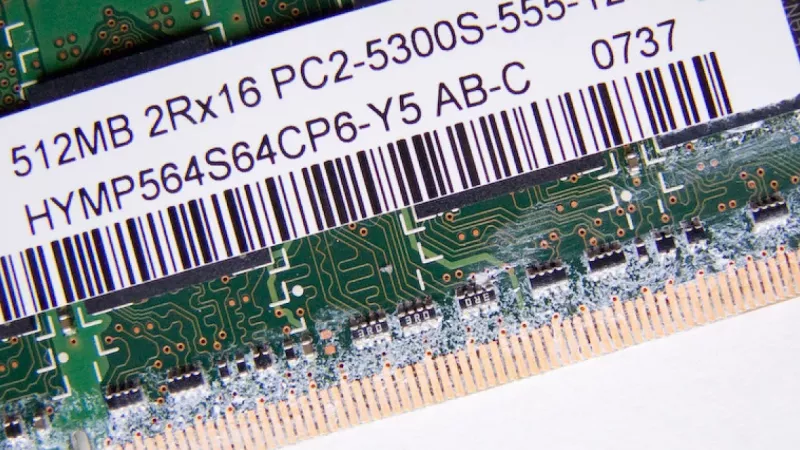
A three-year-old business laptop rarely needs retirement because its processor gave out. In most refresh reviews the genuine bottlenecks are memory that fills up under modern browser and collaboration workloads, and a tired SATA drive that stretches every boot, sign-in and update cycle into minutes. Targeted RAM and SSD upgrades remain the highest-return hardware intervention an IT team can approve: for roughly a tenth of the price of replacement units, existing machines gain two to three years of productive service.
This guide describes the complete workflow DistriNode recommends to procurement and support teams — auditing what actually sits inside each chassis, writing an unambiguous purchase specification, installing components safely and validating the result before a device returns to its user.
Why upgrades still beat replacement on total cost
Consider a fleet of forty ultrabooks purchased with 8 GB of RAM and 256 GB SSDs. Replacing them costs a five-figure sum, triggers imaging, enrolment and user-migration labour, and generates e-waste that increasingly has to be justified in sustainability reporting. Doubling the memory and quadrupling the storage across the same fleet typically costs less than two replacement laptops in total, can be scheduled in batches without disrupting departments, and defers the capital expense of a full refresh by several budget cycles.
The economics only hold, however, when the right parts arrive the first time. Returns, re-orders and mismatched modules erode the savings quickly, which is why the audit stage below deserves more attention than it usually receives.
Stage one: audit the fleet before ordering anything
Never specify components from a marketing datasheet. Two laptops sold under the same model name can differ in memory generation, slot count and even drive-bay layout depending on the production run. For each model in scope, record five facts: memory generation (DDR4 or DDR5), number of SODIMM slots versus soldered capacity, maximum supported capacity per slot, M.2 slot length and interface, and whether a second storage bay exists.
The service manual outranks the spec sheet
Manufacturer hardware maintenance manuals list exactly which configurations shipped with which slots populated. They also reveal traps that spec pages omit: some thin-and-light designs solder all memory to the board, making a RAM upgrade impossible, while others expose a second M.2 slot that is wired for WWAN cards only and will never detect an NVMe drive. Ten minutes with the manual prevents an entire pallet of unusable modules.
Software inventory tools complete the picture. A remote query through PowerShell or any endpoint-management agent can report installed module part numbers, speeds and free slots across the whole estate without opening a single case.
Writing the RAM specification
The platform decides between DDR4 and DDR5
Memory generations are mechanically and electrically incompatible — the keying notch sits in a different position, and no adapter exists. Machines built around 11th-generation Intel Core or Ryzen 5000 mobile platforms and earlier take DDR4 SODIMMs; most 12th-generation and newer platforms moved to DDR5, although several budget lines kept DDR4 for years afterwards. Order strictly by what the audit found, not by what the CPU could theoretically support.
Capacity planning by workload profile
- 16 GB — the sensible floor for office productivity, browser-heavy work and continuous video conferencing in 2026.
- 32 GB — developers, analysts working with large spreadsheets or BI tooling, and anyone running local containers or a single virtual machine.
- 64 GB — engineering workstations, multi-VM labs and media production; verify the platform ceiling first, as many mobile chipsets stop at 64 GB.
Ranks, matched kits and dual-channel behaviour
Two 16 GB modules outperform a single 32 GB module in the same machine because dual-channel operation doubles available memory bandwidth — integrated graphics benefit most, often gaining 15 to 25 percent in rendering throughput. When one slot holds soldered memory, match the new module capacity and speed to the soldered portion where possible. Mixing speeds is safe in the sense that the system clocks down to the slower module, but it quietly wastes part of the investment.
Browse compatible DDR4 and DDR5 SODIMM modules by capacity and speed grade, and keep one spare module per twenty machines as a service buffer.
Writing the SSD specification
NVMe and SATA can share the same slot shape
An M.2 2280 slot may speak SATA, PCIe NVMe or both — the audit must state which. Fitting a SATA-only M.2 drive into an NVMe-only slot produces a drive that is never detected, and the reverse mistake is equally common in returns statistics. Where the platform supports NVMe, choose it without hesitation: even an entry-level PCIe 3.0 drive delivers roughly five times the sequential throughput of SATA and dramatically better latency under mixed load.
Endurance, cache design and warranty terms
For business use, evaluate three figures beyond the headline speed. Terabytes written (TBW) defines the warranted write volume — 300 TBW or more per 500 GB class leaves a comfortable margin for office workloads. A DRAM cache, or at minimum host memory buffer (HMB) support, keeps sustained performance stable once the fast SLC cache is exhausted. Finally, prefer five-year warranty lines over three-year budget series for any device holding primary user data; the price difference is trivial compared with a single data-recovery incident.
On capacity, 512 GB is the practical minimum for a primary drive in 2026; 1 TB adds headroom for local caches, recorded meetings and development environments at a modest premium. Compare current NVMe and SATA SSD options against these criteria before finalising the order.
Installation workflow, step by step
- Prepare: take a verified backup or image, suspend BitLocker, power the unit off fully and disable the battery in firmware or disconnect it internally where the manual allows.
- Open: release the bottom-cover screws in the documented order — several chassis mix captive screws of different lengths, and a magnetic mat prevents mix-ups.
- Ground yourself: an antistatic wrist strap costs less than one SODIMM and eliminates the most common cause of dead-on-arrival claims that are actually handling damage.
- Seat the RAM: insert the module at roughly 30 degrees, aligned by the notch, then press it flat until both side clips click. A half-seated module is the classic no-boot symptom.
- Fit the SSD: remove the retention screw, slide the drive into the M.2 connector at an angle, press down and secure it. Transfer any thermal pad supplied with the chassis.
- First boot: enter firmware setup, confirm the new capacity and drive detection, then run a short memory diagnostic before restoring the operating system.
Migration and validation
For individual machines, sector-level cloning through a USB-to-NVMe enclosure is the fastest route and preserves the user environment exactly. For batch rollouts, a clean image from the deployment server is usually the better choice: it re-establishes encryption, updates firmware and clears years of accumulated configuration drift in a single pass.
Validation should be recorded, not assumed. A full pass of a bootable memory tester on the first unit of each batch, a SMART health readout on every new drive, and a spot-check that TRIM is active complete the handover. Log the old drive serial numbers for the disposal chain — wiped or shredded according to your data-handling policy.
Batch discipline pays: upgrade and validate one pilot unit per model, document the exact part numbers that worked, and only then release the purchase order for the remaining fleet.
Frequently asked questions
Can modules of different capacities run in dual channel?
Modern memory controllers support asymmetric configurations through flex mode: the overlapping capacity runs dual-channel and the remainder single-channel. It works reliably, but matched pairs remain preferable for bandwidth-sensitive tasks on integrated graphics.
Do DRAM-less SSDs belong in business laptops?
For light office roles they are acceptable when HMB support is present. For primary drives handling large mail archives, local databases or frequent bulk file operations, a DRAM-equipped model maintains far more predictable performance and justifies its small premium.
Does opening the laptop void the manufacturer warranty?
Under most vendor terms, memory and storage are classed as customer-replaceable units, and upgrading them does not void coverage unless damage is caused in the process. Check the specific vendor policy for each model and retain the original parts until the warranty expires.
Is PCIe 4.0 worth specifying if the fleet only supports PCIe 3.0?
Often yes. Gen4 drives are fully backward-compatible, frequently cost no more than remaining Gen3 stock, and stay reusable in the next hardware generation. The drive simply runs at Gen3 speeds until it moves to a faster host.
How should encrypted drives be handled before cloning?
Suspend or disable BitLocker, or the equivalent, before imaging, and re-enable it only after the new drive has been verified. Cloning a protected volume without suspending encryption is the most frequent cause of failed first boots in upgrade projects.
A disciplined audit, a precise specification and an hour of careful work per machine: that is the entire recipe. Whether you are extending one workstation or refreshing hundreds of business laptops, the RAM-plus-SSD route delivers the most noticeable performance gain per euro available to any fleet manager this year.
Leave a comment