

Price Alerts and Stock Alerts made simple
Our alert system lets you monitor products automatically. Save a target price, wait for stock to return, receive a clean notification when the condition is reached, and manage everything directly from your account.
What this feature does
This system was created for customers who want to keep track of products without repeatedly checking the same page. Depending on the product state, you will see either a Price Alert button or a Stock Alert button directly on the product page.
If the product is currently available, you can save a target price and wait until the product reaches that level. If the product is currently unavailable, you can save a stock notification and wait until it becomes available again.
Every alert is linked to your account, can be managed later, and is automatically disabled after a successful notification email so that you do not receive repeated alerts for the same saved request.
The two types of alerts
Price Alert
If the product currently has a sellable price, the page shows Price Alert. You can enter the level you want to monitor and save it under your account.
The system can watch both a lower target and a higher target, depending on what you enter.
Stock Alert
If the product is out of stock or not currently sellable, the page switches to Stock Alert.
In that case, you do not need to enter a price. You simply save a stock notification and wait for the product to become available again.

Products with an active price show the Price Alert button. Click it, enter your target and save the alert directly from the product page.
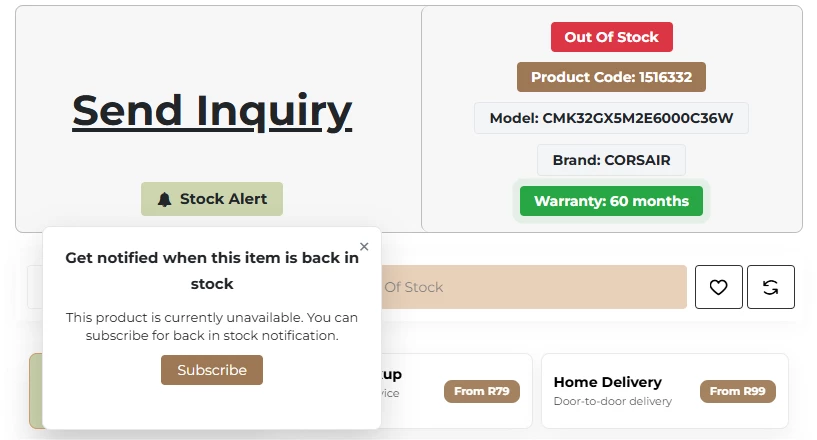
Products that are unavailable switch to Stock Alert. In this case, the system watches for product availability instead of a specific price.
How to use the system
The process is simple, automatic and linked to your customer account so that you can manage everything later without losing track of saved products.
Log in to your account
Only logged-in customers can save and manage alerts.
Open a product page
The page will show Price Alert or Stock Alert depending on the product state.
Save your alert
Enter a target price for price alerts or simply save the stock alert request.
Watch the active button state
After saving, the button stays visually active so you know the product is already monitored.
Receive one email
When the target condition is reached, the system sends one email notification.
Alert auto-disables
After a successful notification, that alert becomes disabled automatically.
How Price Alerts actually behave
Waiting for a price drop
If the current product price is above your target, the system monitors for a drop down to your chosen level.
It can drop past your target
If the product price moves straight below your target instead of landing exactly on it, the alert still triggers correctly.
Monitoring upward movement
If you enter a target above the current product price, the system treats it as an upward watch and triggers when the price reaches or exceeds it.
Special prices are included
The system checks the active product price as shown to the customer, including valid special prices when they apply.
Examples
If a product currently costs R5,000 and you set an alert at R4,500, the system waits until the price reaches R4,500 or below.
If the same product moves directly from R5,000 to R4,300, the alert still triggers because your requested level was reached.
If a product currently costs R5,000 and you set an alert at R5,500, the system treats this as an upward target and triggers when the product reaches R5,500 or more.
How Stock Alerts behave
Stock Alerts are used when a product is not currently available. Once saved, the system watches until the product becomes available again.
When the item returns, you receive a notification email containing the product information, the current price and a direct link to the product page.
After that notification is sent successfully, the same stock alert is disabled automatically so that you do not receive duplicate messages for the same saved request.
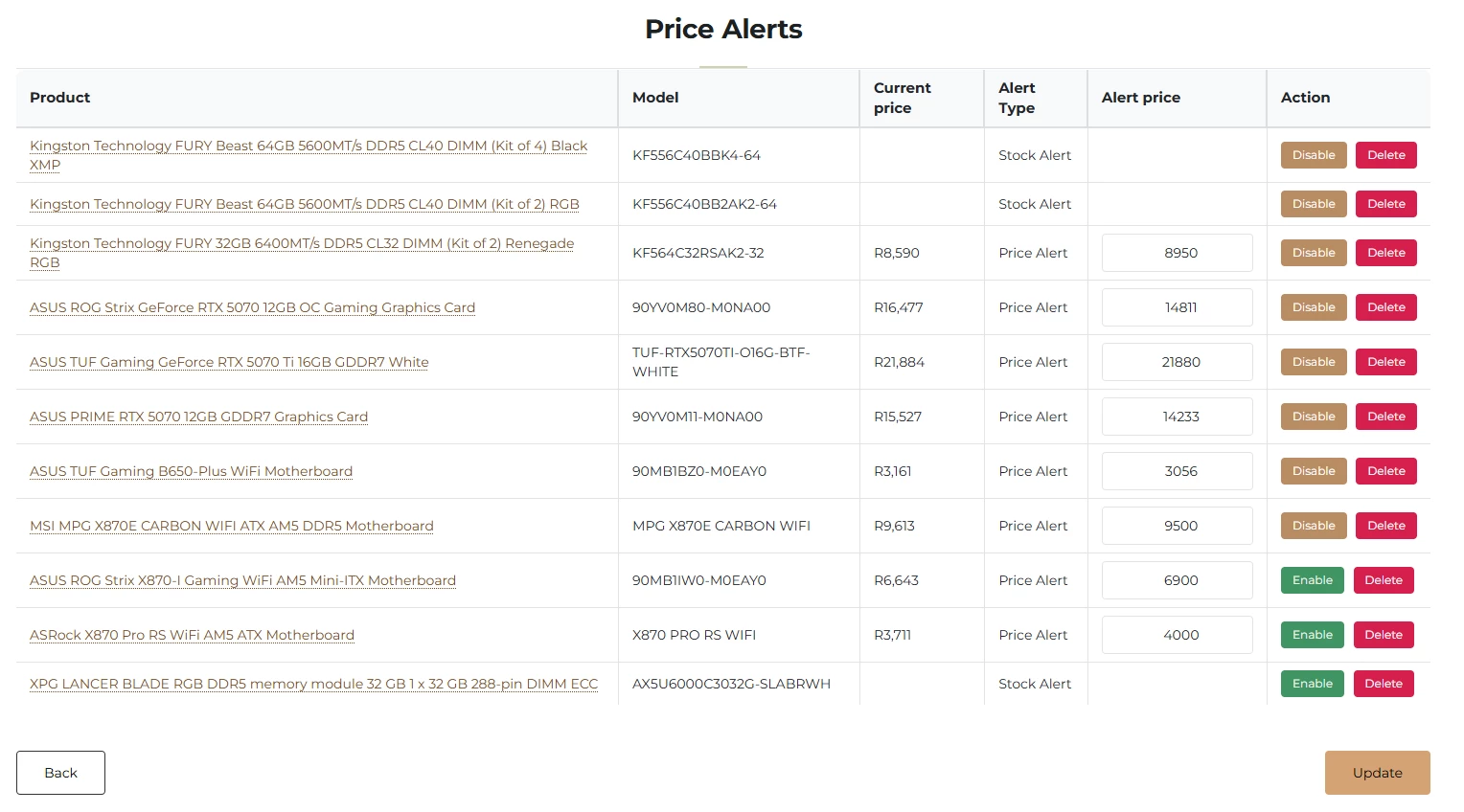
Your account includes a dedicated Price Alerts page where you can see saved products, review alert types, update price targets, disable alerts or delete them completely.
What you can manage in your account
See all saved alerts
Your account shows every saved alert in one place, making it easy to track what products you are currently monitoring.
Update, disable or remove
Price alerts can be updated later. Both price and stock alerts can be disabled or deleted whenever you want.
One product, one saved alert
Each customer keeps one alert entry per product, so saving again updates the existing alert instead of creating duplicates.
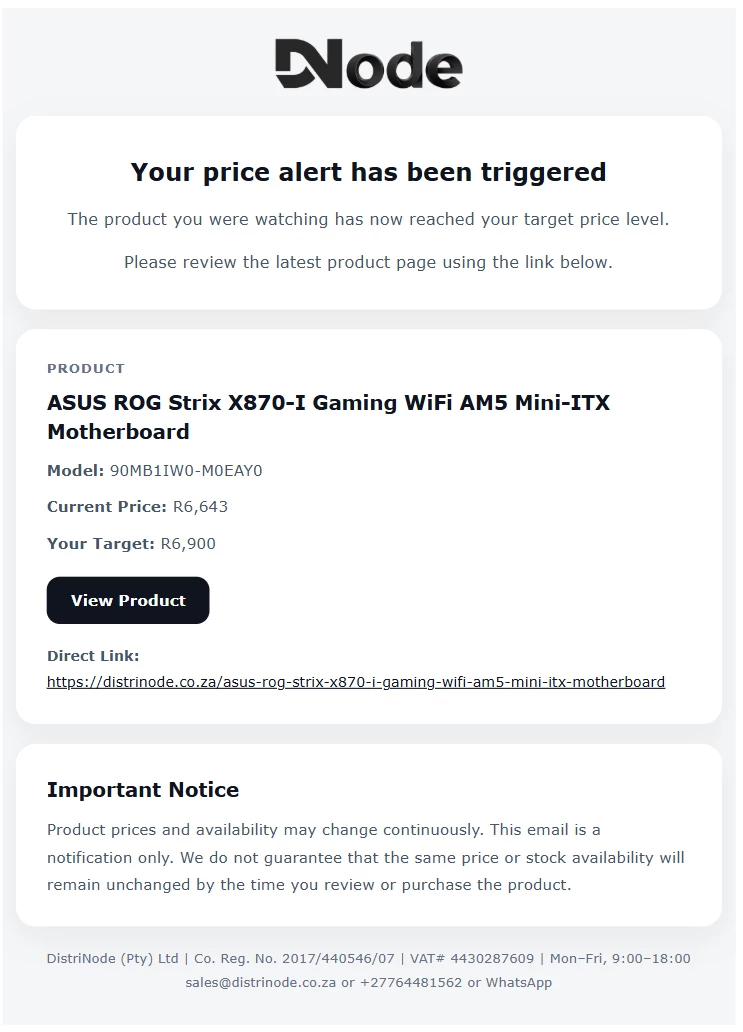
Once your alert is triggered, you receive a dedicated email showing the product, the current price, your saved target and a direct product link.
What the notification email includes
Important conditions
Product prices and availability can change continuously. The system sends the notification when your saved condition is detected, but the product page may already look different by the time you open it.
This means the email confirms that the saved level was reached, but it does not reserve stock and it does not freeze the price for later.
If you are interested in the product, it is best to open the link promptly and review the latest live page information directly on the store.
Why alerts send only one email
Once an alert is triggered and a notification is successfully processed, that alert becomes disabled automatically.
This avoids repeated emails when a product keeps moving around the same price level or remains available after the first back-in-stock event.
If you want to monitor the same product again later, you can simply create a new alert or update it again from your account page.
Monitor products once, let the system do the rest
Save your price or stock target, receive one clear notification when the condition is reached, and manage all alerts from your account whenever you need.