

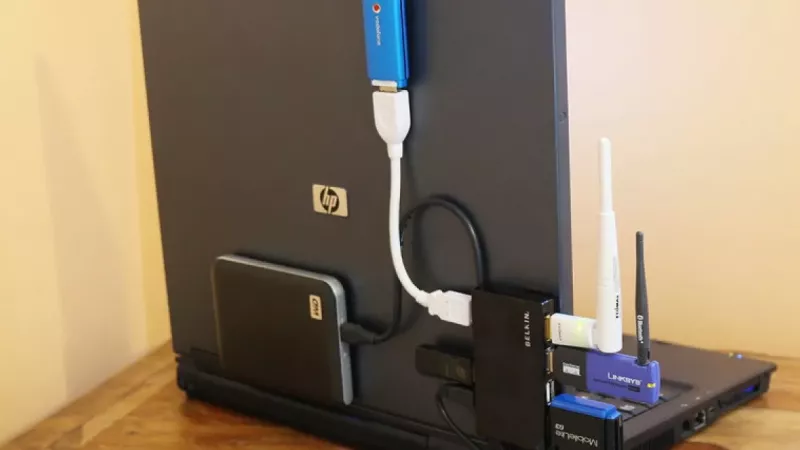
Every modern laptop ships with fewer ports than the person using it actually needs. Two or three USB-C sockets must somehow serve external displays, wired networking, storage drives, input devices and charging, often all at the same time. The accessory market answers with two product families that look deceptively similar on a shelf: the USB hub and the docking station. Choosing between them has little to do with price tags and everything to do with understanding what each device was engineered to accomplish.
This guide walks through the architecture, the bandwidth arithmetic and the deployment scenarios in plain terms, so that whether you are equipping a single home office or standardising hardware across an entire department, the decision becomes a calculation rather than a guess.
Two product families, two engineering goals
The USB hub: port multiplication at its simplest
A hub is, at its core, a signal splitter. It accepts one upstream connection from the computer and multiplies it into two, four or seven downstream sockets. There is no independent processing inside worth mentioning: every connected peripheral still negotiates with the host controller in the laptop, and all of them draw from the same shared reservoir of bandwidth and power. That simplicity is precisely why hubs remain compact, affordable and virtually driver-free.
Hubs arrive in two variants. Bus-powered models feed entirely off the laptop, which keeps them pocket-sized but limits what they can sustain: keyboards, mice and flash drives run happily, while power-hungry mechanical drives may stutter or disconnect under load. Self-powered hubs add a mains adapter and lift that ceiling considerably. If the requirement stops at connecting a handful of USB accessories, a well-chosen model from a range of USB hubs resolves it for very little money.
The docking station: a desktop backbone behind one cable
A docking station plays an entirely different game. Rather than splitting a single port, it integrates dedicated controllers for video, networking, audio and charging behind one upstream cable. Connect that cable and the laptop gains what is effectively an external motherboard extension: multiple display outputs, gigabit or faster Ethernet, an array of USB-A and USB-C sockets and, critically, enough Power Delivery wattage to charge the machine while every peripheral operates at full speed.
The one-cable principle is what elevated docks from niche accessory to standard corporate equipment. An employee arrives, inserts a single USB-C or Thunderbolt lead, and two monitors, the wired network, a headset and a full-size keyboard come alive within seconds. Contemporary laptop docking stations are engineered around exactly that workflow.
The technical differences that decide the outcome
Bandwidth and how it is divided
Raw numbers explain most real-world frustrations. A typical USB 3.2 Gen 1 hub offers 5 Gbps shared across all of its ports. Copy files from two external SSDs simultaneously and each transfer slows, because both compete for the same lane. For a mouse, a printer and a memory stick this is irrelevant; for sustained storage workloads it becomes the bottleneck that no amount of extra sockets can fix.
Thunderbolt and USB4 docking stations operate on a different scale, moving up to 40 Gbps between laptop and dock. That envelope carries two 4K video streams, a 2.5 Gbps network link and several storage devices concurrently without visible degradation. The dock also performs its own protocol management, offloading work that a hub would push back onto the host system.
Power: consuming it versus supplying it
A bus-powered hub is a net consumer of the laptop's energy budget, which matters on the road when every watt of battery counts. A docking station reverses the direction of flow. Models rated at 65 W, 90 W or 100 W Power Delivery charge the laptop through the same cable that carries data and video, eliminating the separate power brick entirely. For fleet deployments this consolidates chargers, reduces cable clutter and removes one of the most commonly lost accessories from the equation.
Video output and multi-monitor support
Here the gap widens the most. Basic hubs carry no video at all. USB-C multiport adapters — hubs with an HDMI socket — usually drive one external display at 4K, at 30 Hz or 60 Hz depending on the laptop's DisplayPort Alternate Mode implementation. Docking stations routinely handle two or three external monitors through native DisplayPort streams, MST splitting or DisplayLink compression, the last of which even works on laptops whose USB-C ports never carried video in the first place. Anyone planning a dual-4K-at-60 Hz workspace is, by definition, shopping for a dock.
The supporting cast: Ethernet, audio and card readers
Wired networking remains faster and more stable than most office Wi-Fi, and a gigabit RJ45 socket is standard dock equipment while appearing only on larger hubs. Dedicated audio jacks, SD and microSD readers, and Kensington lock slots round out the docking feature set. None of these is revolutionary on its own; together they define the difference between an adapter and a workstation foundation.
Matching the device to the way people actually work
Choose a hub when mobility dominates
- The laptop travels daily and accessories connect only occasionally.
- Peripherals are light: flash drives, input devices, a printer, a card reader.
- No external display is needed, or a single screen at modest refresh rates suffices.
- Budget per seat is tight and requirements are unlikely to grow soon.
Choose a docking station when the desk is the anchor
- Two or more external monitors are part of the daily setup.
- The laptop must charge over the same cable that carries everything else.
- Stable wired networking is required for video calls, VoIP or large transfers.
- The same desk serves multiple users or a hot-desking rotation.
The hybrid middle ground
Hybrid work rarely means half of each. The pattern that works in practice is a dock permanently wired at the primary desk plus a lightweight travel hub in the laptop bag. The combined cost is still moderate, and each device does the job it was designed for instead of compromising at both.
Lifecycle and procurement considerations
For organisations buying in volume, the calculation extends past the unit price. Docking stations standardise the desk: one approved model works across laptop generations and often across brands, provided the fleet is USB-C or Thunderbolt based. Firmware is maintained for years, warranties commonly run three years, and a failed dock is swapped in minutes without touching the laptop image. In DistriNode's distribution experience, the dock-per-desk model measurably reduces support tickets across mixed-brand fleets. Hubs, being simpler, are treated as consumables — inexpensive to replace, but offering no standardisation benefit.
A dependable rule of thumb: if the accessory lives in the bag, buy a hub; if the cable lives on the desk, buy a dock.
One caution applies to both categories: match the specification to the laptop before ordering. A 40 Gbps dock connected to a 10 Gbps laptop port will function, but at the port's ceiling, not the dock's. Reading the host machine's specification sheet first prevents paying for headroom that cannot be used.
Frequently asked questions
Can a USB hub drive an external monitor?
Only if it is a multiport adapter with a dedicated video output such as HDMI, and only when the laptop's USB-C port supports DisplayPort Alternate Mode. A plain data hub carries no display signal whatsoever, regardless of how many sockets it offers.
Will every docking station charge my laptop?
Most modern USB-C and Thunderbolt docks provide Power Delivery, but wattage varies from 60 W to 100 W and beyond. Compare the dock's output with the wattage of the laptop's original charger; workstation-class machines may need the higher figure to keep charging under full load.
Do docks work across different laptop brands?
Universal USB-C and Thunderbolt docking stations are brand-agnostic by design. The practical variables are port bandwidth, alt-mode support and PD wattage on the laptop side, not the logo on the lid. Proprietary-connector docks from earlier product eras are the exception.
Why do devices drop out when my hub is fully loaded?
Almost always power starvation. A bus-powered hub can deliver only what the laptop port supplies, and four active devices may exceed it. Moving to a self-powered hub, or to a dock with its own supply, resolves the symptom at the source.
Is Thunderbolt worth the premium over standard USB-C?
For dual high-resolution displays, external NVMe storage or 10-gigabit networking, yes — the 40 Gbps envelope is the only way to run them simultaneously. For a single monitor and office peripherals, a quality USB-C dock delivers the same daily experience for less.
The bottom line
The hub and the dock are not competitors; they are answers to different questions. The hub asks how to connect more devices to one port. The dock asks how to turn a laptop into the heart of a complete, permanently wired workspace. Define which question your setup is really asking, check your laptop's port specification, and the right product category selects itself.
Leave a comment