

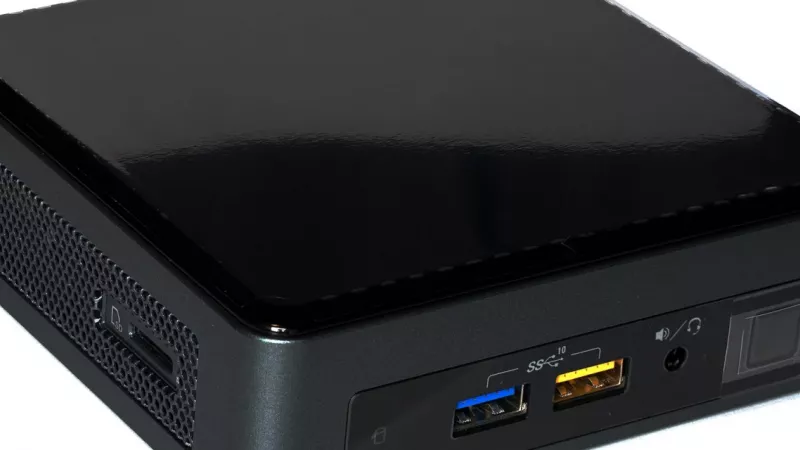
A mini PC can replace a desktop tower for most office, study, web, media and home-server work, but not for heavy gaming or workstation loads. The honest answer in 2026 is “it depends on what the tower was actually doing”. If your current tower spends its days running a browser, spreadsheets, video calls and 4K streaming, a box the size of a thick paperback will do the same job, quietly, and use far less desk space.
This guide explains what a mini PC really is, where it is enough, where a tower still wins, and which specifications to check before you buy. We also cover South African realities such as load-shedding, and we finish with a checklist you can take straight to the mini PCs and barebone NUC category.
What counts as a mini PC in 2026
A mini PC is a complete desktop computer in a very small chassis, usually between roughly half a litre and one litre in volume. Inside you normally find a mobile-class processor (the same family of chips used in thin laptops), one or two memory slots, one or more M.2 slots for an SSD, and a compact cooling module. Compared with a tower it is easy to move, easy to store and simple to share between a desk and a lounge. The category was popularised by the Intel NUC; in 2023 Intel agreed a licence deal so that ASUS would continue the NUC line, which is why “NUC” is now used loosely for the whole class (ASUS press release).
Today the field is wider than NUC. Business vendors sell tiny desktops for offices, and many brands make compact boxes built around Intel Core Ultra or AMD Ryzen mobile chips. AMD’s current mobile line-up includes the Ryzen AI 300 series, for example the Ryzen AI 9 HX 370, which is the type of chip found in higher-end mini PCs.
Barebone versus complete system
Many models are sold as a barebone: the chassis, board and processor are included, but you add your own memory and SSD, and install an operating system yourself. A complete system arrives with RAM and storage fitted and is ready to switch on. A barebone suits you if you already own a spare SSD or want to pick capacities yourself; a complete unit suits anyone who wants to plug in and start.
What a mini PC is not
It is not a games console replacement with a big graphics card, and it is not a rack server. It also differs from a laptop: there is no screen, keyboard or battery, which is exactly why it can be smaller, cheaper to run and easier to hide behind a monitor.
When a mini PC is genuinely enough
Modern mobile processors are fast enough for everyday computing. The tasks below are comfortably within reach of a current mini PC with 16 GB of memory and an SSD.
Office, study and remote work
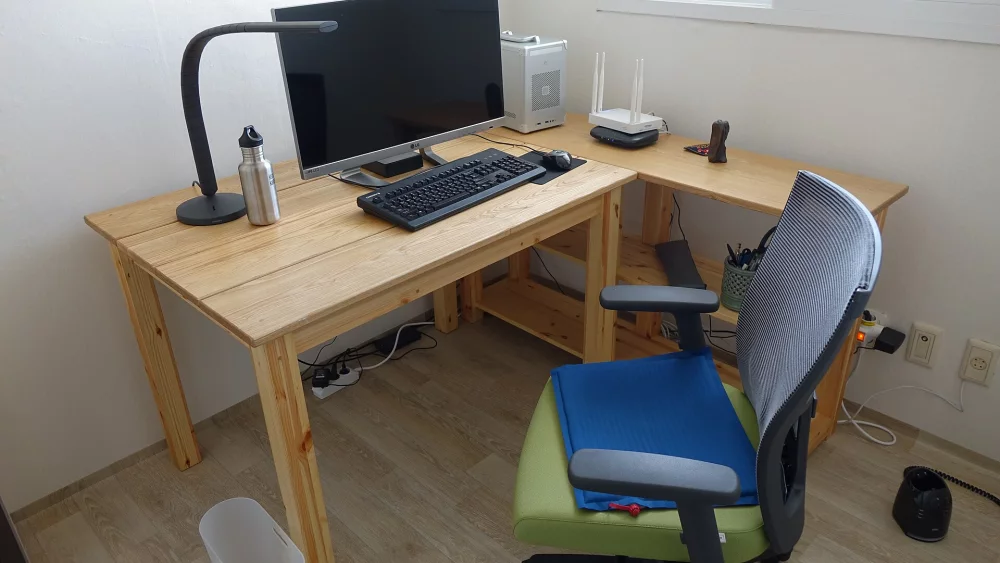
Browsers with many tabs, Microsoft Teams or Zoom calls, document and spreadsheet work, accounting packages and cloud apps are all light loads. A mini PC with two monitors is a very common office set-up, and it frees the floor space that a tower would occupy.
Media centre and 4K streaming
Hardware video decoding for current streaming formats is built into mobile graphics, so a mini PC makes an excellent living-room box. Check that the HDMI port matches your television: a port that supports the HDMI 2.1 standard is needed for the highest refresh rates, and the HDMI Forum notes that Ultra High Speed cables are the ones designed for systems up to 48 Gbps (hdmi.org).
Light photo editing and hobby video
Editing RAW photos, cropping and exporting a few clips, or cutting a family video works well, particularly on chips with strong integrated graphics. Long 4K timelines with effects will feel slower than on a tower with a dedicated graphics card.
Home server, NAS front-end and small business
Because a mini PC sips power compared with a tower, it is a popular always-on machine for file sharing, a home-automation hub, a print server or a small point-of-sale back end. With two M.2 slots you can also mirror drives for a basic safety net, although a proper backup is still essential.
Rule of thumb: if your tower’s graphics card is idle most of the day, you are paying in space, noise and electricity for hardware you do not use.
When a tower still wins
A mini PC is a compromise, and some jobs expose it quickly. Be realistic before you swap. If you want to keep a mini PC as a second machine and still run a tower for the heavy work, that is a perfectly sensible split: the small box handles the always-on tasks, and the tower is switched on only when you need its power. A two-machine approach also saves electricity during the day.
Gaming with a dedicated graphics card
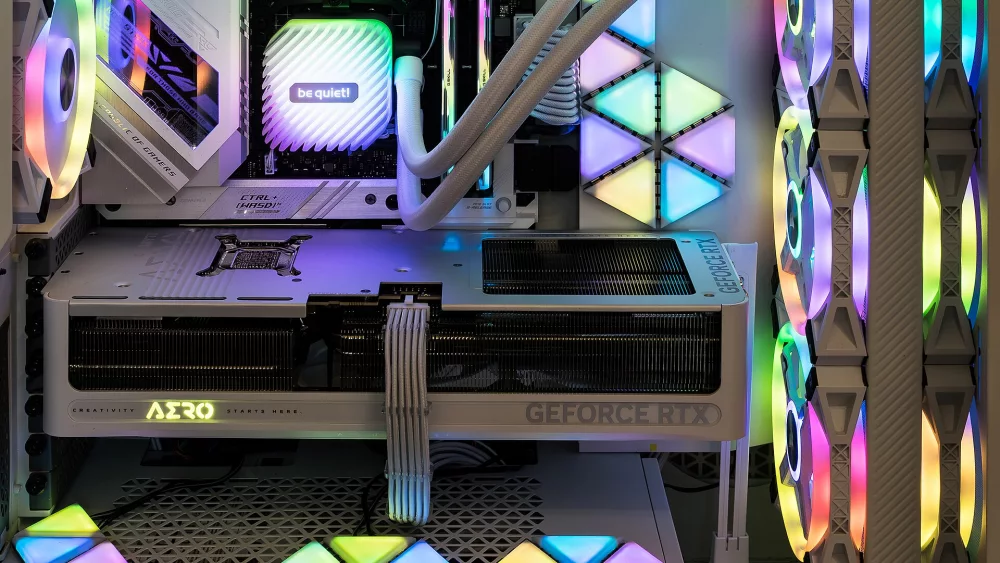
Towers can hold a full-size discrete graphics card with its own fans and power connectors. Mini PCs usually rely on integrated graphics, which handle esports titles and older games at modest settings, but not modern AAA games at high settings. If gaming is the reason for your PC, look at desktop computers instead.
Workstation loads
3D rendering, large video projects, machine-learning training and engineering simulation want sustained power, plenty of cores and lots of memory. Compact chassis limit cooling, so the processor throttles sooner than in a tower with big fans.
Upgradeability and repair
A tower lets you replace the graphics card, add drives and change the motherboard over many years. In a mini PC you can normally upgrade memory and SSD only, and in some models the memory is soldered to the board and cannot be changed at all.
Mini PC versus tower versus laptop
The table gives the general picture. Individual models vary, so treat it as a guide rather than a specification.
| Aspect | Mini PC | Tower desktop | Laptop |
|---|---|---|---|
| Size | Very small, can hang behind a monitor | Large, needs floor or desk space | Portable, all-in-one |
| Performance ceiling | Good for everyday tasks, limited sustained power | Highest, especially with a graphics card | Similar to a mini PC, limited by battery and heat |
| Upgrades | Memory and SSD, sometimes only SSD | Almost everything | Often just SSD and sometimes memory |
| Power use | Generally low | Generally higher, much higher under gaming load | Low, with a built-in battery |
| Screen and peripherals | Bring your own | Bring your own | Included |
| Best for | Office, media, home server | Gaming, workstation, long-term upgrades | Mobility |
Processor class: what to look for
Mini PCs are built on mobile-class processors, so names look like laptop chips. On the Intel side you will see Core and Core Ultra series; on the AMD side, Ryzen 7040, 8040 and the newer Ryzen AI 300 series. A higher series number generally means a newer design, but the suffix matters too: letters such as U or H indicate low-power or high-performance variants in the same family.
Cores and integrated graphics
For office and media, a modern chip with six to eight cores is plenty. If you plan light gaming or video editing, favour models with stronger integrated graphics, because a mini PC cannot add a graphics card later.
NPU and “AI PC” labels
Newer chips include a neural processing unit for on-device AI features. Microsoft documents which devices support its NPU-based features (Microsoft Learn). For plain office and media use this is a bonus, not a reason to pay extra. Pay for cores, memory and ports first, and treat AI features as a nice extra that will matter more over time.
Memory: SO-DIMM, soldered and how much you need
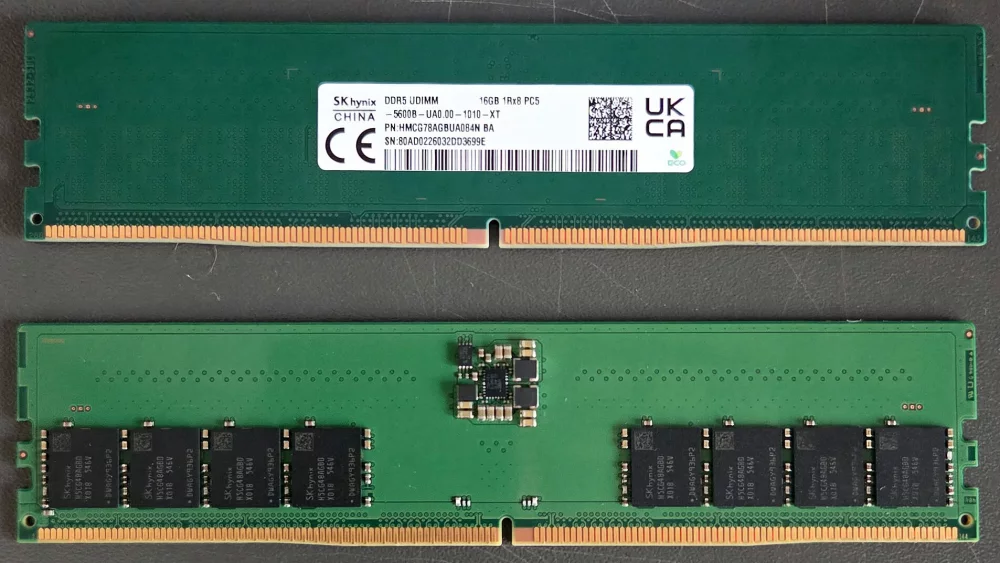
Most barebone mini PCs use laptop-size SO-DIMM modules, typically DDR5 in recent models, and have two slots. Some compact designs solder the memory to the board, which is faster in some cases but means the capacity you buy is the capacity you keep.
For office work 16 GB is a sensible starting point; for photo editing, many browser tabs plus virtual machines, consider 32 GB. Always check the maker’s specification for the supported memory type and maximum capacity before you buy modules from our memory RAM category. Dual-channel (two modules) usually gives noticeably better integrated-graphics performance than a single module.
Storage: M.2 slots and heat
Look for at least one NVMe M.2 slot, and ideally two if you want a second drive or a mirror. Check the slot length (2280 is the common size) and the supported interface generation. A fast NVMe solid state drive makes a bigger everyday difference than a marginally faster processor.
Compact cases get warm, so choose drives with a good reputation for thermals, and avoid filling the chassis with objects that block airflow. Some mini PCs also include a 2.5-inch bay, which is useful for cheap bulk storage.
Ports and connectivity
Ports are where mini PCs often beat laptops, and where cheap models cut corners. Make a list of your devices before comparing.
USB-C, USB4 and Thunderbolt
USB4 is based on the Thunderbolt protocol and allows up to 80 Gbps over certified cables, according to the USB Implementers Forum. A Thunderbolt 4 port adds validated 40 Gbps connections; see thunderbolttechnology.net. These ports let you attach fast external storage and run docks or extra displays from a single cable.
Video outputs
Count the HDMI and DisplayPort connections and confirm which versions they support. Two or three display outputs are common, and USB-C ports with DisplayPort support can add more.
Ethernet and wireless
2.5 GbE is now common and handy for a home server or fast fibre. For wireless, Wi-Fi 7 uses the 6 GHz band, supports 320 MHz channels and multi-link operation, according to the Wi-Fi Alliance. You only benefit if your router supports it as well, so a wired connection is still best for a desktop that stays in one place.
A mini PC with only two USB ports and no spare video output soon feels cramped. Count your devices first, then buy the ports.
Cooling, noise and placement
Small chassis mean small fans. Under light load most mini PCs are nearly silent, but when the processor works hard the fan can become audible. Reviews that measure noise under load are more useful than the manufacturer’s idle figures.
Place the unit where air can flow around it. Do not stack it in a closed cabinet, especially in a hot South African summer. Dust also builds up; plan to blow it out every few months, particularly if you live in a dusty area.
Mounting behind the monitor
Before you commit to a model, confirm the mounting holes: mini PC brackets commonly use the 75 x 75 mm and 100 x 100 mm VESA patterns, and the same patterns are found on many monitors. A mounted mini PC keeps cables short and leaves the desk free, which many small offices and home studies in South Africa appreciate when space is tight.
Many mini PCs support VESA mounting, so you can fix them to the back of a computer monitor and have only one cable run to the desk. Check that your monitor has a VESA pattern and that the bracket supports the weight of the mini PC. Also confirm that the monitor’s own ports do not get blocked once the mini PC sits behind it.
The best mini PC is the one whose limits you know before you buy: no graphics card, little room to upgrade, and a fan that needs air.
Power draw, load-shedding and backup
Mini PCs generally use much less power than a tower with a graphics card, which matters for your electricity bill and for backup power. Because the load is small, a compact UPS or a small inverter with battery can keep a mini PC and a monitor or router running through a short outage, whereas a gaming tower would drain the same battery far faster. Check the maker’s rated power and the supplied adapter before you size any backup, and remember to add the monitor, the router and any external drives to the total. For outage schedules and notices, see Eskom or your municipality.
Sudden power loss can corrupt files, so use a UPS or a laptop-style approach for anything important, and keep backups.
Windows 11 readiness
If you plan to use Windows 11, the hardware must meet Microsoft’s minimum requirements: a compatible 64-bit processor of 1 GHz or faster with two or more cores, 4 GB of memory, 64 GB of storage, UEFI with Secure Boot capability and TPM 2.0 (Microsoft Learn). Almost all mini PCs from recent years meet this, but older second-hand units may not, so check the processor against Microsoft’s supported lists and make sure TPM or firmware TPM is enabled in the BIOS.
Consumer rights when buying in South Africa
The Consumer Protection Act 68 of 2008 gives you rights to goods that are of good quality and fit for purpose; the National Consumer Commission explains how to complain at thencc.org.za. The right to cool off applies to direct marketing, not to every online purchase, so check the store’s own return policy before ordering. Warranty is according to manufacturer terms, and you should keep your invoice.
Checklist by use case
| Use case | Memory | Storage | Key ports | Other |
|---|---|---|---|---|
| Office and study | 16 GB | One NVMe SSD | 2 video outputs, several USB | Quiet fan, VESA mount |
| Media centre | 8 to 16 GB | One NVMe SSD | HDMI to match TV | Wi-Fi or Ethernet, small footprint |
| Photo and light video editing | 32 GB | Fast NVMe, second slot | USB4 or Thunderbolt | Strong integrated graphics |
| Home server | 16 to 32 GB | Two drives | 2.5 GbE | Low idle power, small UPS |
Common mistakes when buying a mini PC
- Buying a mini PC to play demanding new games, then being disappointed by integrated graphics.
- Ignoring whether memory is soldered, and so being unable to upgrade later.
- Forgetting that a barebone has no memory, storage or operating system included.
- Choosing a model with too few video outputs for your monitors.
- Buying fast Wi-Fi 7 hardware but keeping an older router.
- Putting the unit in a closed cabinet with no airflow.
- Skipping backup power and risking file damage during an outage.
Buying checklist
- List what the tower does today: office, media, gaming, editing or server.
- Decide between barebone and a complete system in the mini PCs and barebone NUC range.
- Pick a processor class that matches the heaviest task, with enough integrated graphics.
- Confirm memory type (DDR5 SO-DIMM or soldered) and maximum capacity.
- Check M.2 slots, length and interface.
- Count monitors, USB devices and network needs, then match the ports.
- Check TPM 2.0 and Secure Boot if you plan to use Windows 11.
- Plan VESA mounting, airflow and a small UPS.
- Keep your invoice for warranty according to manufacturer terms.
Frequently asked questions
Can a mini PC really replace my desktop tower?
For office, study, media and home-server use, yes. For gaming with a graphics card or heavy workstation tasks, a tower is still the better tool.
Is a mini PC quieter than a tower?
Usually at idle and light load. Under sustained load the small fan can be heard, so look for noise measurements in reviews.
Can I upgrade a mini PC later?
Often memory and SSD only. Check whether memory is soldered, because then only storage can change.
Do I need Thunderbolt?
Only if you use fast external storage, docks or several high-resolution displays from one cable. USB4 or plain USB-C is enough for many people.
Is a mini PC good for load-shedding?
Its low power draw makes it easier to keep running on a small UPS or battery, but backup runtime depends on the whole set-up, including monitor and router.
Ready to compare models? Browse the full range of mini PCs, memory and drives at DistriNode.co.za, where live prices are shown in each category.
Leave a comment