

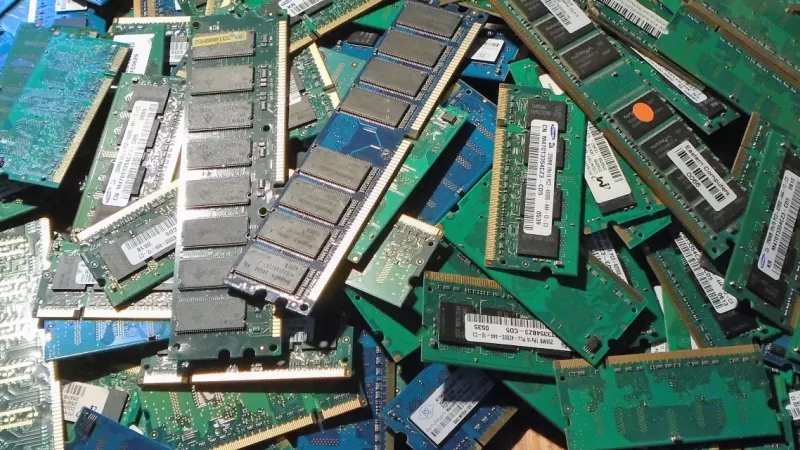
DDR4 Laptop RAM: Boost Laptop Speed with Easy Upgrades
If your laptop feels like it's dragging its feet, one of the easiest and most affordable fixes is upgrading the DDR4 laptop RAM. It’s a straightforward hardware swap that can make a sluggish computer feel snappy and new again, directly tackling performance issues so you can multitask without the dreaded lag.
Why Bother Upgrading Your DDR4 Laptop RAM?
Is your laptop struggling to keep up with your day-to-day tasks? The culprit might not be an old processor or a full hard drive; it’s often just a simple lack of Random Access Memory (RAM). Think of RAM as your computer's short-term workspace. When it gets cluttered, your whole system grinds to a halt.
A RAM upgrade breathes new life into your machine. It’s the difference between a smooth, seamless workflow and the kind of constant, productivity-killing delays that many people mistakenly blame on their laptop's age.
Spotting the Tell-Tale Signs You Need More RAM
You don’t need to be a tech whiz to see the symptoms of a memory bottleneck. If any of these sound familiar, a RAM upgrade is almost certainly what you need:
- Constant Slowdowns: Your laptop gets sluggish the moment you open a few browser tabs, a spreadsheet, and your music app.
- Application Freezes: Heavier programs like Adobe Photoshop or video editing software become unresponsive or just crash mid-task.
- Excessive Hard Drive Activity: You can hear your hard drive constantly churning away (or see the little light flashing) as your laptop desperately tries to use its slower storage to make up for not having enough RAM.
This is exactly where adding more DDR4 laptop RAM makes a real, tangible difference. DDR4 is a memory standard that hit the sweet spot of speed, power efficiency, and affordability, which is why it became the go-to for so many laptops.
For the average laptop user, the jump from 8GB to 16GB of RAM is the single most effective upgrade you can make. It transforms a frustratingly slow machine into a responsive and capable workhorse, extending its useful life for years.
The Lasting Value of DDR4
Even with newer standards on the market, DDR4 is still the backbone of millions of laptops across the globe, and for good reason. Here in South Africa, DDR4 has been the standard for consumer laptops for years, offering that perfect blend of reliable performance and great value.
In fact, DDR4 still accounted for roughly 60% of the global DRAM market as of 2023, which just goes to show how dominant it remains outside of high-end gaming rigs or specialised workstations. You can dig into more on memory module market trends in this industry report.
This widespread adoption is great news for you, as it ensures that compatible DDR4 laptop RAM is easy to find and competitively priced, making it a smart, practical investment.
Checking Laptop RAM Compatibility
There’s nothing worse than the sinking feeling you get when a brand-new component you’ve been waiting for doesn't actually fit your machine. When you're dealing with DDR4 laptop RAM, getting the compatibility right from the start saves you a world of frustration and return shipping costs. Luckily, figuring out what you need isn't nearly as complicated as it sounds.
First things first, let's talk about the physical shape. Laptops almost exclusively use SODIMM (Small Outline Dual In-line Memory Module) sticks. These are the much shorter, more compact cousins of the standard DIMMs you'd find in a desktop PC. This is your first and most important checkpoint—a desktop RAM module will not physically fit into a laptop slot, period.
The notch on a RAM stick isn't just for show; it's a clever bit of physical keying. The notch on a DDR4 SODIMM is in a unique position, making it impossible to accidentally slot a DDR3 or DDR5 stick into a DDR4 slot. It's a simple, effective way to prevent costly mistakes.
Finding Your Laptop's Memory Limits
Before you even think about adding RAM to your shopping cart, you need to know what your laptop can actually handle. Every motherboard has a hard limit on both the maximum amount (capacity) and the fastest speed of RAM it can recognise. If you install more than the maximum capacity, your laptop simply won't see the extra memory.
The easiest way to get a quick snapshot of your current setup is right within Windows.
- Press Ctrl + Shift + Esc to pop open the Task Manager.
- Head over to the Performance tab.
- Click on Memory from the side panel.
This screen is a goldmine. It shows you how much RAM you're currently using, the speed it's running at (e.g., 2666MHz), and, crucially, how many memory slots are in use. If it says "Slots used: 1 of 2," you've got an empty slot just waiting for an upgrade.
A common pitfall is overspending on speed. Your laptop's chipset sets the maximum supported RAM speed. Installing a 3200MHz module in a machine that tops out at 2666MHz won't break anything, but the faster RAM will just downclock itself to 2666MHz. You'll have paid a premium for performance you can't access.
The Technical Nitty-Gritty
Beyond the physical size and speed, a few other specs are critical to get right. Let's run through them.
Before you purchase, it's a good idea to run through a quick checklist to make sure you've covered all your bases. This table summarises the key points we've just discussed.
| Specification | What to Check | Where to Find This Information |
|---|---|---|
| Form Factor | Must be SODIMM for laptops. | Visual inspection of current RAM or laptop manufacturer's website. |
| Generation | Must be DDR4. | Task Manager, CPU-Z, or laptop's technical specifications sheet. |
| Maximum Capacity | Check the total RAM your laptop model supports (e.g., 16GB, 32GB). | Manufacturer's official website or tools like Crucial System Scanner. |
| Maximum Speed | Check the highest frequency your motherboard supports (e.g., 2666MHz, 3200MHz). | Manufacturer's website or system information tools. |
| Voltage | Should be 1.2V for standard DDR4 SODIMMs. | Printed on the sticker of your current RAM module. |
| ECC vs. Non-ECC | Most consumer laptops need non-ECC memory. | Laptop's technical specifications. Assume non-ECC unless it's a mobile workstation. |
This checklist acts as your final confirmation before committing to a purchase, ensuring you get the right module the first time.
ECC vs. Non-ECC
The vast majority of consumer and business laptops use non-ECC (Error-Correcting Code) memory. ECC RAM is a specialised type of memory built for servers and high-end workstations to detect and correct data corruption on the fly. It's not compatible with standard laptop motherboards, so unless you're upgrading a specific mobile workstation model, you'll always be looking for non-ECC modules.
Voltage
Standard DDR4 SODIMMs operate at a very specific 1.2V. This standardisation is a huge advantage of the DDR4 generation, but it never hurts to give it a quick check. An incorrect voltage can cause system instability or prevent your laptop from booting altogether.
Single vs. Dual-Channel
Here’s a pro tip for a noticeable performance boost. If your laptop has two memory slots, installing a matched pair of RAM sticks (e.g., two identical 8GB modules) allows them to run in dual-channel mode. This doubles the data pipeline between your RAM and CPU, which can significantly improve performance, especially for systems relying on integrated graphics. For this reason, upgrading with two 8GB sticks is almost always a better choice than using a single 16GB stick.
Picking the Right RAM Capacity and Speed
Figuring out how much DDR4 laptop RAM you actually need isn't some dark art. It’s about being honest about what you do with your laptop day-to-day. Forget the generic advice—let's match the memory to your real-world workload.
The goal here isn't to max out the specs just for the sake of it. It’s to find that perfect balance where your laptop runs smoothly without you having to overspend on capacity you’ll never touch.
How Much RAM Do You Really Need?
For most of us, the choice boils down to three main tiers. Think of them as levels tailored to how hard you push your machine, from casual browsing to intense professional work.
8GB: The Everyday Sweet Spot If your laptop is for browsing the web (even with a bunch of tabs open), streaming movies, and knocking out documents in Word or Excel, then 8GB is usually more than enough. It keeps things feeling snappy for typical daily use, and there's a good reason it's the standard for most new laptops.
16GB: The Power User's Baseline This is where performance starts to get serious. Are you a developer, a graphic designer deep in Adobe Creative Suite, a serious multitasker, or a gamer? Then 16GB should be your starting point. It's the key to preventing frustrating lag when you're juggling demanding apps or working with large files.
32GB and Beyond: For the Professionals Who needs this much memory? People whose work depends on it. We're talking about high-resolution video editors, 3D modellers working on complex renders, or IT pros running multiple virtual machines at once. For them, more RAM means less time waiting and a much smoother workflow, making 32GB or even 64GB a very smart investment.
We’ve seen this trend play out locally. For example, the demand for DDR4 laptop RAM in South Africa jumped by over 25% between 2020 and 2023. Laptops with 8GB modules were the main driver, accounting for over 60% of sales by 2023, solidifying its place as the standard for both business and education. You can dig deeper into these market shifts in this detailed report.
Does RAM Speed Actually Matter?
Once you’ve landed on a capacity, you'll see a speed rating like 2666MHz or 3200MHz. This number tells you how fast the RAM can access data. While faster is technically better, there's a big "but" you need to know about.
Your laptop's motherboard and processor have a hard limit on the RAM speed they can handle.
Popping a 3200MHz RAM stick into a laptop that maxes out at 2666MHz won't break anything. It will just run at the slower 2666MHz speed. You’ve essentially paid a premium for performance you can't use.
Before you buy, always check the official specifications from your laptop's manufacturer to find its maximum supported speed. A quick search of your model number is all it takes.
Honestly, for most people, the real-world performance gain from a slightly faster RAM speed is tiny compared to the massive leap you get from upgrading your capacity (say, from 8GB to 16GB). My advice? Prioritise getting the right capacity first. Then, pick the fastest speed your laptop officially supports that fits your budget. That’s how you get the most bang for your buck.
Getting Your Hands Dirty: Installing Your New DDR4 RAM
Alright, you've done the research and your new DDR4 laptop RAM has arrived. Now for the fun part: the installation. It might feel a bit daunting if you've never opened up a laptop before, but it's usually a straightforward job. All it takes is a bit of care, the right screwdriver, and a clean, well-lit space to work in.
Before you even think about touching a screw, get your tools ready. A small Phillips-head screwdriver is a must. I also highly recommend an anti-static wrist strap. If you don't have one, make sure to ground yourself by touching a large, unpainted metal object (like a radiator or desk leg) to get rid of any static buildup. That little zap you sometimes feel can be fatal to your RAM.
This quick diagram breaks down the thought process for picking the right RAM—it all starts with what you actually do on your laptop.
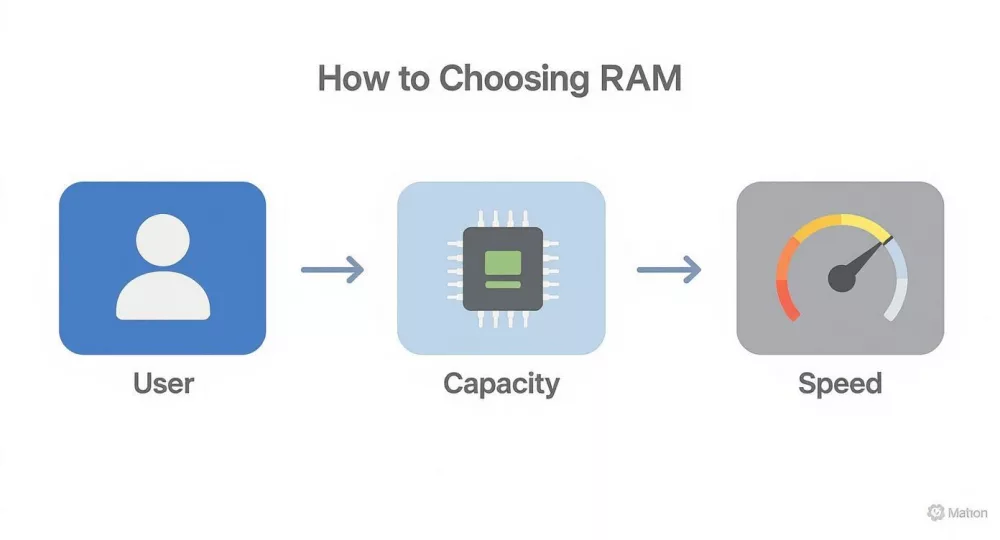
As you can see, your daily use case is the real starting point. That’s what tells you how much capacity you need and whether a speed bump will make a noticeable difference.
Prepping for Surgery
First things first: power down completely. Don't just close the lid; do a full shutdown. Unplug the AC adapter. If your laptop has a battery you can pop out, do that now. For newer models with an internal battery, you'll likely need to disconnect its cable from the motherboard once you're inside.
Find a stable, flat surface. I always put down a microfibre cloth to protect the laptop's lid from scratches. Flip the laptop over and start undoing the screws on the bottom panel. Be methodical here—some screws can be different lengths, so keep them organised.
My go-to trick: Grab a piece of tape and stick the screws to it in the same pattern you removed them. It makes putting everything back together a breeze and stops you from using the wrong screw in the wrong hole.
Finding the Memory Slots
With the screws out, you'll need to gently pry off the bottom panel. A plastic spudger or even an old credit card is perfect for this, as it won't scratch the casing. Once it's off, you'll see the guts of your machine. The RAM slots are usually pretty obvious—they're long, thin slots with little silver clips on each side.
If you're upgrading an existing stick, you need to free it first. Just use your fingertips to push the two clips outwards, away from the RAM module. The stick will pop up at an angle, ready for you to slide it out. No force needed.
Now, grab your shiny new DDR4 SODIMM. Take a look at the gold pins and you'll see a small notch. This is designed to line up with a little bump in the slot itself, so you physically can't install it the wrong way.
Seating the New Module
Line up that notch with the bump in the empty slot. Slide the new DDR4 laptop RAM in at about a 45-degree angle. Make sure the gold contacts go all the way in and you can't see them anymore.
Once it's seated properly, gently press the module down towards the motherboard. It should lay flat, and as it does, you'll hear a very satisfying 'click'. Those side clips have just snapped into place, locking your new memory in tight. That click is your signal that you're good to go.
All that's left is to put the patient back together. Reconnect the internal battery cable if you unplugged it, then clip the bottom cover back on. Screw it down, pop the main battery back in if you removed it, and plug in the power. The hardware part is done—time to boot up and enjoy the extra performance
Where to Find and Buy Reliable DDR4 RAM
Alright, you've figured out exactly what RAM specs your laptop needs. Now for the fun part: buying it. Where you get your DDR4 laptop RAM is just as important as the specs themselves. It's the difference between a smooth upgrade and a headache, affecting everything from reliability and warranty to whether you're getting a fair price.
Most people head straight to major online retailers or pop into a local computer shop. That’s a decent start. Big online stores can have great prices and fast shipping, but you have to be your own quality control. My advice? Dive into the user reviews. A RAM stick with thousands of positive ratings is a far safer bet than a mystery module with zero feedback. Real-world users are great at flagging those weird compatibility quirks that spec sheets never mention.
Look for a Lifetime Warranty
Here’s a pro tip: one of the clearest signs of quality RAM is the warranty. Brands like Crucial, Corsair, and Kingston almost always offer a limited lifetime warranty. Think about what that means—the manufacturer is so confident their product will outlast your laptop that they’ll back it for life.
That kind of guarantee gives you serious peace of mind. It’s a powerful signal that you’re buying a solid, reliable product, so always prioritise brands that offer it.
Sourcing for Business and Bulk Needs
If you're an IT pro, a reseller, or a business looking to upgrade an entire fleet of laptops, buying one-off sticks from a retail site just won't cut it. Trying to track down stock and compare prices across a dozen different suppliers is a massive time sink. This is where a proper procurement platform changes the game.
Using a centralised marketplace can cut your procurement time by more than half. It also ensures you get authentic components at competitive prices without the hassle of juggling multiple vendor accounts.
Take a platform like DistriNode, for instance. It aggregates a huge catalogue from tons of verified distributors right here in South Africa. This makes it perfect for sourcing genuine DDR4 laptop RAM in any volume, whether you need a single stick for a one-off repair or hundreds of modules for a company-wide upgrade. You’re guaranteed authentic parts, and the whole process is simplified.
Getting your sourcing right is especially important in the local market. South Africa's laptop market goes through an estimated 5-7 million DDR4 RAM modules a year. But with import costs and duties, we often see prices that are 20-30% higher than in other countries. Finding a reliable, cost-effective supplier is key. To get a better handle on these dynamics, you can explore more about the regional DDR4 market outlook. It’s not just about buying the right part; it’s about buying it smart.
Got Questions? We’ve Got Answers
Even after doing all your homework, you might still run into a few head-scratchers during a RAM upgrade. It happens to the best of us. Let's walk through some of the most common questions that pop up, so you can handle them like a pro.
Can I Mix and Match Different Brands or Sizes of RAM?
Technically, yes, but it's one of those things you can do, but really shouldn't. For your laptop to run smoothly and reliably, you want to use identical sticks of DDR4 laptop RAM. That means the same brand, same capacity, same speed, and the same timings.
If you mix modules, your entire system will slow down to match the speed of the weakest link. That faster, more expensive stick you bought? Its potential will be wasted. Worse, mismatched RAM is a classic recipe for system instability, random crashes, and the infamous Blue Screen of Death.
If you're aiming for that sweet dual-channel performance boost, using a matched pair isn't just a suggestion—it's essential. It's the only way to ensure the modules can synchronise properly and work together as a team.
Is It Possible to Upgrade RAM That's Soldered On?
This is a tricky one, and the answer is a firm "it depends." If your laptop has all its memory soldered directly onto the motherboard, you're out of luck. That RAM is a permanent part of the machine, and there's no way to upgrade it.
But don't lose hope just yet. Many newer laptops use a hybrid system. They might have a base amount soldered on, like 4GB or 8GB, but also include a free SODIMM slot for you to add more. This is your green light for an upgrade. Adding a new module to that empty slot is a straightforward way to boost your total system memory.
To find out what you're working with, you'll need to investigate your specific model. The manufacturer's website is a good starting point, but often the quickest way to get a definitive answer is to look up a teardown video on YouTube. Seeing someone else open up the same model will show you exactly what's inside.
Help! My Laptop Won't Turn On After I Installed the New RAM!
First off, don't panic. This is probably the most common hiccup people face, and the fix is usually surprisingly simple. Nine times out of ten, the new RAM module just isn't seated properly in its slot. It might look like it's in, but if the connection isn't perfect, your laptop won't boot.
Here’s the game plan:
- Power everything down. Shut off the laptop, unplug it from the wall, and if you can, disconnect the battery. Safety first.
- Try reseating the module. Gently take the RAM stick out and put it back in. Push it firmly into the slot at a 45-degree angle until you can't see the gold contacts anymore. Then, press it down flat until you hear both clips on the side click into place. That click is the sound of success.
- Give it another go. Reconnect the battery and power cord, and try booting up again.
If it’s still a no-go, swap your old RAM back in. If the laptop starts up with the original module, you know the machine itself is fine. That means the new RAM is likely either faulty or simply incompatible with your system. Time to go back and double-check those specifications against what your laptop needs.
Ready to find the right parts for your next build or company-wide upgrade? Source authentic, well-priced DDR4 laptop RAM and other components from a massive catalogue of verified local distributors on DistriNode. Simplify your procurement process at https://www.distrinode.co.za.
Leave a comment