

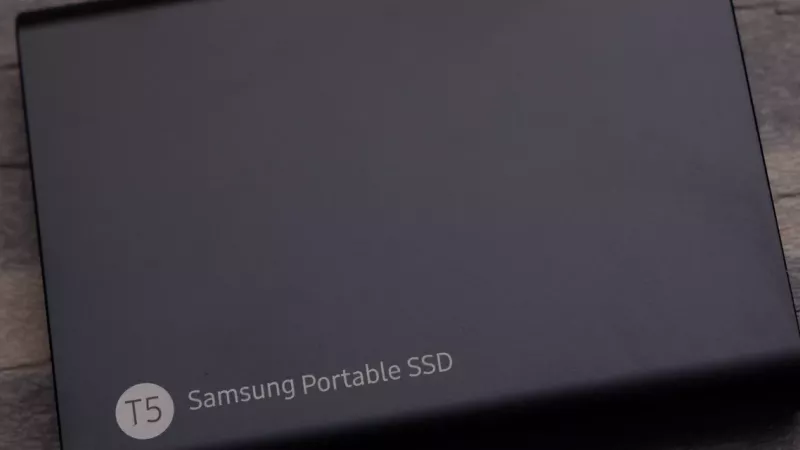
At its core, a 256GB solid-state drive is a high-speed digital workbench for your computer's most important files. It relies on flash memory to access data almost instantly, which is why it’s such a powerful upgrade over old-school mechanical hard drives for making any system feel faster and more responsive.
What a 256GB Solid State Drive Actually Does
Think of a traditional hard drive as a massive library where a librarian has to physically walk down long aisles to find a specific book. An SSD, on the other hand, is like having a digital catalogue where any book you need appears on your screen the moment you search for it.
That simple difference is what makes a 256GB SSD feel so revolutionary in day-to-day use. All the slow, moving parts are gone, replaced by interconnected flash-memory chips. This modern design gets rid of the physical search and spin-up delays that have always been the biggest performance bottleneck in older hard disk drives (HDDs).
The payoff is a huge improvement in the areas you notice most:
- Warp-Speed Boot Times: Your computer goes from off to ready-to-use in seconds, not minutes.
- Instant Application Launches: Programs like your browser, email, and office suite open right away.
- Snappy File Access: Opening documents, photos, and other files feels immediate.
Understanding the 256GB Capacity
The "256GB" is its storage capacity—around 256 gigabytes. In the real world, you'll have a little less than that available after formatting and the space the system sets aside for itself. This size is perfect for your operating system, all your essential programs, and a decent chunk of personal files.
For instance, a modern operating system can take up 40-60GB, and your key software might use another 20GB. That still leaves you plenty of room for documents, spreadsheets, and thousands of photos, making the 256GB SSD an excellent choice for the main drive in a business or home PC.
You could argue that an SSD is the single most impactful upgrade for improving how fast a computer feels. The immediate jump in responsiveness gives a much better return on investment than just adding more RAM to a system still stuck with a mechanical hard drive.
This sweet spot of affordability and performance is what's fuelling its popularity. The South African solid-state drive market is growing fast, with projections showing an increase from about USD 4.5 billion in 2025 to USD 11.2 billion by 2031. The 256GB models are a major part of that trend. You can find more details on the South African SSD market growth.
When you're looking at a 256GB solid-state drive, one of the first and most important forks in the road is deciding between a SATA or an NVMe model. They don't all plug into your computer the same way, and knowing the difference is crucial for making sure the drive actually fits and performs as you expect.
Let's break it down with a simple analogy. Think of a SATA SSD as a reliable local delivery van. It's a massive step up from sending things by foot (like an old-school mechanical hard drive), getting data where it needs to go quickly and efficiently for most day-to-day jobs. It’s dependable, affordable, and gets the job done well.
An NVMe SSD, on the other hand, is more like a high-speed cargo plane. It’s built for one thing: pure, unadulterated velocity. It moves massive amounts of data at breathtaking speeds by connecting directly to your system's express lane—the PCIe slot—completely bypassing the slower routes that SATA drives have to use.
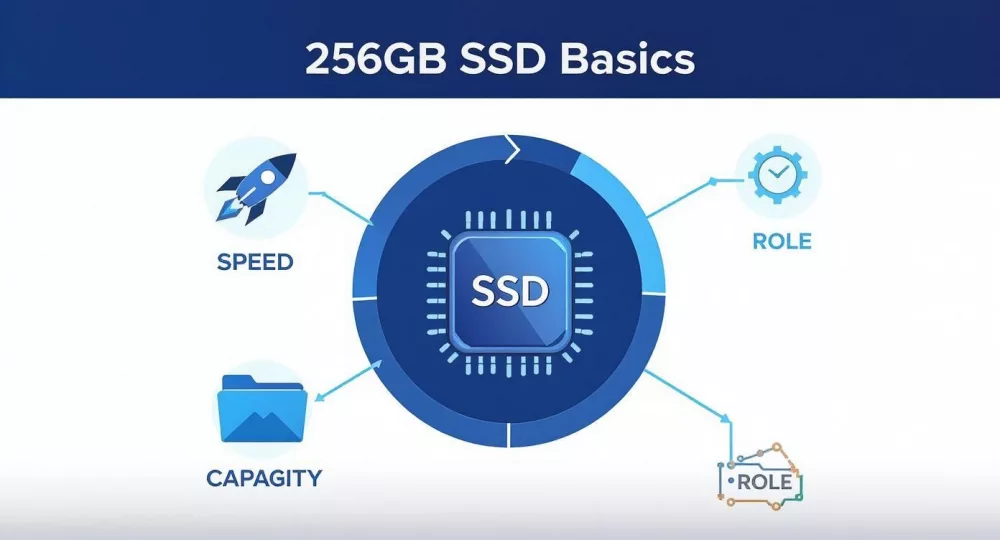
As you can see, speed, capacity, and its role as a super-fast boot drive are really the defining traits of a 256GB SSD.
SATA: The Dependable Standard
SATA (which stands for Serial ATA) is the older, more established connection. For years, it was the go-to standard for just about every storage drive, and it’s still incredibly common today.
Most 256GB SATA SSDs come in a 2.5-inch rectangular case, the exact same size and shape as a traditional laptop hard drive. This makes them a perfect drop-in replacement for older machines. You can pop out the slow old drive, plug in the SSD, and enjoy a massive speed boost with almost no fuss. They’re widely compatible and generally easier on the wallet, which makes them a fantastic choice for breathing new life into ageing hardware.
NVMe: The Performance Leader
NVMe (Non-Volatile Memory Express) is the modern speed demon of the storage world. These drives usually come in the M.2 form factor, which looks more like a small stick of RAM than a traditional drive.
Instead of needing a separate power and data cable, an M.2 NVMe drive plugs directly into a special slot on the motherboard. This direct line to the system’s brain allows for mind-bogglingly fast data transfer—we’re talking speeds that can be 5 to 7 times faster than their SATA cousins. You'll really feel this difference when you're transferring huge files, loading complex software, or running heavy workloads.
For businesses and power users, the choice often boils down to the specific application. SATA offers a cost-effective speed bump for general use, but NVMe delivers the raw throughput needed for data-intensive tasks, ensuring your system runs without frustrating bottlenecks.
To help you see the differences at a glance, here’s a quick comparison.
SATA vs. NVMe SSDs: A Quick Comparison
| Feature | SATA SSD | NVMe SSD |
|---|---|---|
| Max Speed (Approx.) | ~550 MB/s | 3,500 - 7,000+ MB/s |
| Form Factor | 2.5-inch, M.2 | Primarily M.2 |
| Connection | SATA Cable | PCIe Slot (Direct) |
| Best For | Everyday use, budget upgrades, older PCs/laptops | High-performance PCs, gaming, content creation |
While NVMe clearly wins on raw speed, a SATA drive is still a massive improvement over any mechanical hard drive.
The 256GB capacity really hits a sweet spot, especially for M.2 NVMe drives used in compact or budget-conscious systems. In fact, back in 2023, 256GB models made up a huge chunk of the global M.2 SSD market, thanks to their great mix of affordability and high performance. You can dig deeper into these trends by checking out the M.2 SSD market report on cognitivemarketresearch.com.
Ultimately, the first step to unlocking this next-level speed is simple: check your motherboard's specifications to see if it has a compatible M.2 slot.
When 256GB Is Enough and When It Is Not
A 256GB solid state drive offers a massive speed boost that makes any system feel instantly more responsive. While the performance jump is undeniable, the real question for many South African businesses and everyday users comes down to a simple, practical matter: capacity. Is 256 gigabytes actually enough room to work with?
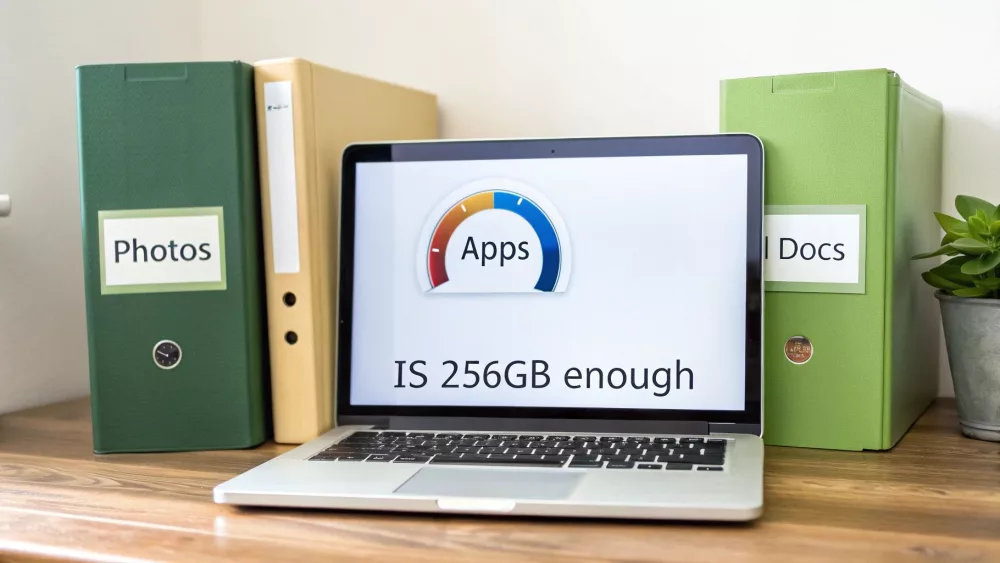
Let's look at the numbers from a real-world perspective. A fresh installation of a modern operating system like Windows 11 will immediately claim up to 60GB of that space. Then, you'll install your essential software—think office suites, accounting packages, and team chat apps—which can easily eat up another 20-30GB.
Right out of the gate, you’ve already used nearly a third of your drive. That leaves you with around 160-170GB for everything else, a crucial detail to keep in mind when figuring out if this drive size makes sense for you or your team.
The Ideal User Scenarios
So, who is the perfect user for a 256GB SSD? It really shines in roles where speed is king and you don't need to store a mountain of data locally.
This capacity is an excellent fit for:
- Dedicated Office Workstations: For machines focused on email, web browsing, spreadsheets, and documents, a 256GB SSD delivers incredible speed without any wasted space.
- Point-of-Sale (POS) Systems: In retail or hospitality, the near-instant boot-up and app loading times are a game-changer, helping you serve customers quickly and efficiently.
- Student or Home-Use Laptops: If you mostly use cloud services like Google Drive or OneDrive for your files and photos, 256GB provides plenty of local storage for the OS and your most-used programs.
In these setups, the drive's capacity is more than sufficient, and its performance completely transforms the day-to-day experience.
For many business applications, responsiveness is far more valuable than raw capacity. A 256GB SSD ensures that an employee's computer is a tool for productivity, not a source of frustration due to slow load times.
When You Will Need More Space
On the other hand, there are definite scenarios where a 256GB drive will feel less like a tool and more like a bottleneck. If your work involves handling large files, you'll find this capacity fills up astonishingly fast, forcing you into a constant cycle of file management.
You should definitely look at a bigger drive if you're a:
- Graphic Designer or Video Editor: A single high-resolution video project or a library of design assets can easily gobble up 100GB or more.
- Serious Gamer: Modern games are massive. A title like Call of Duty can demand over 150GB of space all by itself.
- Data Hoarder: If you're someone who likes to keep your entire photo library, music collection, and personal videos on your machine, 256GB simply won't cut it.
For these power users, a 256GB drive still has a valuable role to play, but it’s best used as a zippy boot drive in a dual-drive setup. By pairing it with a larger, more affordable hard drive (HDD) for bulk storage, you get the best of both worlds: blistering speed for your OS and apps, plus all the space you need for your files.
Smart Ways to Use a 256GB SSD
https://www.youtube.com/embed/sqmizC6HeKU
Knowing the limits of a 256GB solid state drive is one thing, but figuring out how to use it smartly is where you really get your money's worth. Think of it less as simple storage and more as a performance booster for the parts of your system that need it most. By putting it to work in the right places, you can make a computer feel dramatically faster without paying for capacity you'll never use.
The most popular and effective job for a 256GB SSD is to be the main boot drive. The idea is simple, but the results are fantastic. You install your operating system—like Windows or macOS—and your most important programs right onto the SSD.
What happens next? Your computer boots up in seconds, not minutes. That old, frustrating wait for your desktop to finally respond is gone. Every application, from your web browser to your accounting software, will snap open almost instantly. It’s a change that can turn a sluggish old machine into a seriously responsive workstation.
Revitalising Older Hardware
Another brilliant use for a 256GB SSD is breathing new life into an older laptop or desktop. So many older computers feel slow not because of their processor, but because they're stuck with a clunky mechanical hard drive. Swapping that old HDD out for a 256GB SSD is probably the single most cost-effective upgrade you can make.
For a relatively small investment, you get a machine that genuinely feels brand new again. This is a great strategy for South African businesses trying to get more mileage out of their current IT equipment. It delays the need for expensive full system replacements while still giving employees a noticeable performance bump.
The goal is to put speed where it matters most. By dedicating the SSD to the operating system and essential programs, you ensure that every interaction with the computer is fast and fluid, which directly impacts daily productivity.
The Power of a Dual-Drive Setup
For anyone who needs both speed and a lot of space—think content creators, designers, or PC gamers—a dual-drive configuration is the perfect answer. This setup combines a nimble 256GB solid state drive with a large, affordable hard disk drive (HDD).
Here’s how that looks in the real world:
- The 256GB SSD: This is home base for your operating system, your core software, and whatever project or game you're currently focused on. This keeps the whole system running fast and smooth.
- The Large HDD: A second, bigger hard drive (usually 1TB or more) acts as your digital warehouse. This is where you store massive files, photo and video libraries, finished projects, and other archives you don't need to access at lightning speed.
This hybrid approach truly gives you the best of both worlds. You get the instant-on feel of an SSD for your everyday work, plus the vast, cheap storage of an HDD for all your data. It’s a balanced and clever way to get maximum performance without blowing your budget, making it an ideal solution for power users and small businesses.
A Simple Checklist for Installation
Thinking about upgrading to a 256GB solid state drive? It's one of the single best ways to make an older computer feel new again, and you'll be happy to know the installation is usually less daunting than it sounds. This checklist will walk you through the essential steps, from picking the right drive to getting it running, so you can sidestep the common pitfalls.
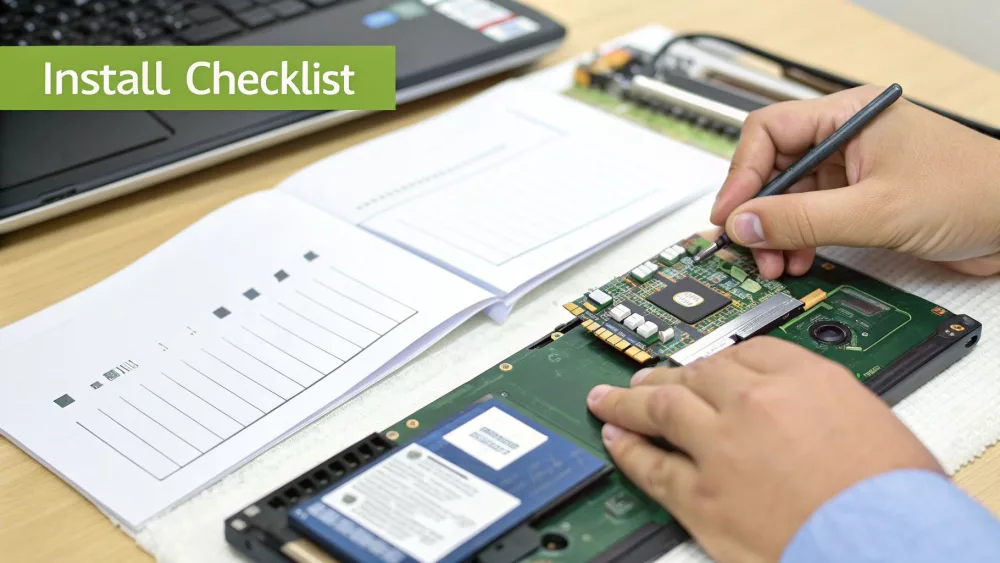
Think of this as your high-level game plan for a smooth and successful upgrade, whether you're working on a desktop PC or a laptop.
Pre-Purchase Compatibility Checks
Before you even think about adding an SSD to your cart, a few quick checks will save you a world of headaches later. The whole point here is to figure out exactly what kind of 256GB solid state drive your machine can actually use.
Identify the Form Factor: Pop open your computer's case or look up its manual online. Do you see a chunky, rectangular drive? That's a classic 2.5-inch drive bay, and a 2.5-inch SATA SSD will drop right in. If you spot a small, narrow slot directly on the motherboard, you're looking at an M.2 slot.
Confirm the Interface: This one's critical for M.2 slots. You need to know if that slot speaks SATA or the much faster NVMe. Your motherboard’s spec sheet is your best friend here. Putting an NVMe drive into a slot that only understands SATA is like trying to plug an appliance into the wrong type of socket—it just won't work.
Check Physical Space: Make sure you have the room. While 2.5-inch drives are pretty standard, some super-slim laptops are very picky about component height. For M.2 drives, you also need to check the length, which is usually printed on the motherboard (for example, 2280 is the most common).
Honestly, taking just five minutes to look up your system's motherboard specs is the most crucial step of all. It ensures you buy a drive that fits and works the first time, saving you the hassle of returns and installation frustrations.
The Installation Process
Got the right drive in hand? Great. The installation itself really boils down to two stages: the physical part of fitting the hardware, and the software side of getting it recognised.
Hardware Steps:
- Power Down and Disconnect: First things first, completely shut down your computer. Don't just put it to sleep. Unplug it from the wall.
- Ground Yourself: Before you touch anything inside, tap a metal part of the computer case. This gets rid of any static electricity you might have built up, which can damage components.
- Connect the Drive: For a 2.5-inch SATA SSD, you'll plug in two cables: one for data and one for power. For an M.2 drive, you just slide it into its slot at a gentle angle, then secure it with the tiny mounting screw.
Software Steps:
- Initialise the Drive: When you boot back up, don't be alarmed if the new drive doesn't appear. You need to tell your operating system it's there. In Windows, you'll use a tool called Disk Management; on a Mac, it's Disk Utility. Here you'll initialise and format the drive.
- Clone or Fresh Install: Now you have a choice. You can use cloning software to make an exact copy of your old drive onto the new SSD. Or, for the best performance and a clutter-free system, you can do a fresh installation of your operating system.
Finding the Best Value in South Africa
For anyone buying a 256GB solid state drive in South Africa—whether you're an IT reseller or a small business owner—getting the best deal is about more than just the price on the sticker. The market is flooded with options, but real value is found in that sweet spot where cost, long-term performance, and reliability meet.
It's tempting to grab a cheap, unbranded drive and save a few rand upfront, but that often leads to hidden costs down the line. We're talking lower endurance ratings, sketchy warranties, and a much higher chance of the drive failing when you least expect it. Those are headaches no business can afford, which is why sticking with reputable brands is always the smarter play.
Look Beyond the Price Tag
When you're weighing up your options, think about what separates a quality drive from a budget gamble. Here are the things that really matter:
- Warranty Support: A solid warranty, usually between 3 to 5 years, is your safety net. Crucially, you need to know that warranty is honoured locally, so you're not left high and dry if something goes wrong.
- Endurance (TBW): The Terabytes Written (TBW) figure tells you exactly how much work the drive can do before its memory cells start to wear out. For any business, a higher TBW means a longer, more dependable lifespan.
- Brand Reputation: Well-known brands don't just sell you a product; they invest in quality control, regular firmware updates, and solid customer support. That’s what ensures their drives perform as promised, year after year.
This balanced view is vital across the Middle East and Africa, where SSDs are becoming standard. While it's tough to get specific numbers just for SA, projections show that the 1GB to 256GB SSD segment will make up a massive 40.3% share of the solid-state array market by 2025. You can find more details in the regional SSD market report on researchandmarkets.com.
In the South African IT channel, authenticity and local support are everything. A drive that fails without a local backup plan can bring a business to a standstill, making any initial saving totally worthless. True value is a product that just works, reliably, for its entire lifespan.
At the end of the day, buying from a trusted local distributor like DistriNode is the only way to go. It’s your guarantee that you’re getting genuine, factory-sealed products backed by proper warranties and the support you need. This cuts out the risk of counterfeit parts and ensures your investment in a 256GB solid state drive delivers the performance and peace of mind you paid for.
Still Have Questions About 256GB SSDs?
Jumping into a storage upgrade can feel like a big step, and it's normal to have a few last-minute questions. To help you feel completely confident in your choice, we’ve put together some quick, clear answers to the things we get asked most about the 256GB solid-state drive.
Is 256GB Really Enough for a Laptop in 2024?
For a lot of people, yes, it’s plenty. If your laptop is your go-to machine for browsing the web, managing emails, and working on documents with cloud services like Google Drive or OneDrive, then 256GB is more than enough room for your operating system and essential programs.
The story changes if you're a gamer looking to install the latest titles, a media lover with a huge local movie or music collection, or a creative professional working with massive video files. In those scenarios, you'll feel the pinch pretty quickly. You’d be better off looking at a larger drive or even a dual-drive setup.
What is This TBW Thing, and Should I Care?
TBW is short for Terabytes Written. Think of it as an odometer for your SSD—it’s a rating that tells you how much data you can write to the drive over its lifetime before the memory cells start to wear out.
Honestly, for a 256GB SSD used as a main drive for your OS and apps, the TBW rating is so high you’ll likely replace the entire computer long before the drive gives up. It's not something the average business or home user needs to lose sleep over.
The only time you’d need to pay close attention to TBW is for really intense, non-stop writing tasks. We're talking about things like a server that’s constantly logging data 24/7 or a system set up for continuous high-resolution video recording.
Can I Actually Install a 256GB SSD Myself?
In most desktop PCs? Absolutely. It’s usually a simple job that just needs a screwdriver and the right cables. It's one of the easiest and most satisfying upgrades you can do.
Laptops, however, can be a different beast. Each model is built differently. While plugging in the drive itself might be easy, it's the software side—like cloning your old operating system onto the new SSD—that can trip up newcomers.
If you’re not comfortable with the idea of opening up your machine, there's no shame in calling a pro. A good technician can get it done quickly and save you a lot of potential headaches.
Ready to feel the speed? Explore a wide selection of authentic, locally supported 256GB SSDs at DistriNode. We'll help you find the perfect drive for your needs with fast, reliable delivery across South Africa. Check out our full range at https://www.distrinode.co.za.
Leave a comment