

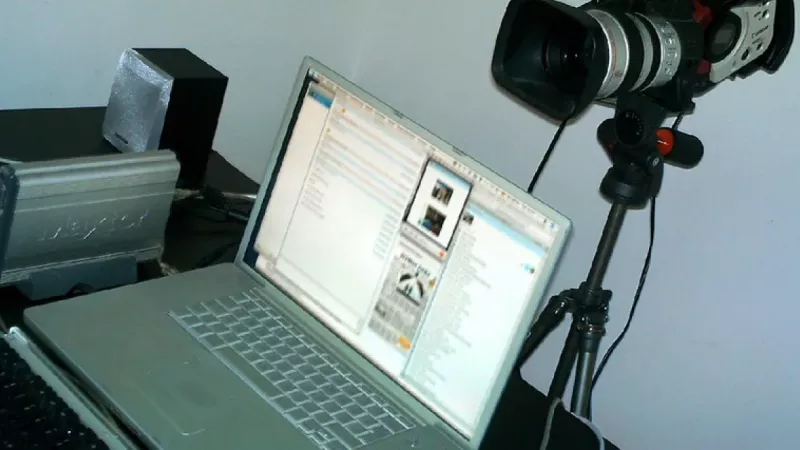
Video meetings have become the default channel for professional communication, yet the camera is still the most neglected component of the average remote workstation. Teams invest in fast laptops, ergonomic chairs and dual-display setups, then join client calls through a grainy sensor embedded in a laptop lid. The result is a persistent mismatch: polished work delivered through an unpolished picture.
Choosing a webcam is simpler than the spec sheets suggest, because three parameters decide almost everything — resolution, field of view and low-light behaviour. This guide explains what each one delivers in real meeting conditions, which secondary features are worth paying for, and how to approach standardisation when equipping an entire distributed team.
Why integrated laptop cameras underperform
The camera module in a laptop lid is constrained by physics. The lid is thin, so the sensor must be tiny, and a tiny sensor collects very little light. Manufacturers compensate with aggressive software processing, which smears fine detail and produces the washed-out, noisy image familiar from countless conference calls. A dedicated external webcam has room for a larger sensor, a better lens and proper autofocus — the three ingredients an embedded module simply cannot fit.
An external camera also solves a framing problem. Laptop lids sit below eye level, so integrated cameras shoot upward at an unflattering angle. A webcam clipped to the top of one of your computer monitors places the lens close to eye height, which makes eye contact feel natural to everyone on the other side of the call.
Resolution: what the numbers deliver in practice
Resolution defines how many pixels the sensor captures per frame. The common tiers are 720p (1280×720), 1080p (1920×1080) and 4K (3840×2160), and their practical value differs sharply.
720p — the legacy floor
Acceptable for occasional calls, but the shortage of pixels becomes obvious the moment a meeting platform displays your feed at a larger size. Documents held up to the camera are unreadable and fine detail dissolves into blocks. For daily professional use, 720p is no longer a sensible purchase.
1080p — the professional standard
Full HD at 30 frames per second is the sweet spot for remote work. It matches or exceeds what most conferencing platforms actually transmit, provides enough detail for a crisp head-and-shoulders frame, and keeps bandwidth requirements moderate. A well-built 1080p camera with a quality sensor outperforms a cheap 4K model in almost every real meeting.
4K — valuable in specific scenarios
Ultra HD earns its price when the footage is reused: recorded training material, webinars, product demonstrations or streams where video is cropped and reframed in post-production. Lossless digital zoom is the other genuine benefit — a 4K sensor can punch in to a tight 1080p frame with no visible degradation. For live calls alone, most platforms compress the stream so heavily that the extra pixels never reach your audience.
The compression reality
Whatever the sensor captures, conferencing services re-encode it to survive variable network conditions. This is why two cameras with identical resolution can look completely different on a call: the one that sends a cleaner, less noisy signal survives compression far better. Noise is expensive to encode, so a low-noise image keeps more of its detail after transmission — another reason sensor quality outranks raw pixel count.
Buy sensor quality first and pixel count second. A larger sensor behind a sharp lens produces a cleaner image than a small, noisy sensor with more megapixels — before and after compression.
Field of view: controlling what the lens includes
Field of view (FOV) is the horizontal angle the lens captures, and it decides how much of you — and your room — appears on screen.
- Narrow (60–70°): frames the face and shoulders tightly. Ideal for individual desks, shared apartments and anyone who prefers not to broadcast their bookshelf. Less background also means less visual distraction for viewers.
- Standard (75–90°): a balanced angle that includes some workspace context. Suits presenters who gesture, use a whiteboard behind them or occasionally show physical objects.
- Wide (90–120°): designed for huddle rooms and multi-person framing. On a single-user desk a wide lens shrinks the subject, exaggerates the background and introduces edge distortion that bends straight lines.
Some models offer adjustable FOV in software or genuine optical zoom, which justifies a premium if the camera will move between a personal desk and a shared meeting space. Otherwise, match the angle to the primary use case: for solo remote work, 65–80° covers the vast majority of situations.
Low-light performance: the specification nobody prints
Most home offices are lit far worse than the studios where promotional webcam footage is filmed. Evening calls, north-facing rooms and single overhead ceiling lights all starve the sensor, and this is where cameras diverge most dramatically in real use.
What determines low-light quality
- Sensor size: a physically larger sensor gathers more photons per pixel, producing less noise at the same scene brightness.
- Aperture: expressed as an f-number, and lower is better. An f/2.0 lens admits roughly twice the light of an f/2.8 lens.
- HDR and exposure processing: good HDR balances a bright window behind you against your face; poor HDR oscillates between exposure states. Check independent sample footage before committing.
- Automatic light correction: effective implementations brighten the image without turning skin tones grey or introducing visible grain.
Helping the camera with placement
Even a premium sensor cannot rescue a face lit from behind. Three low-cost adjustments deliver most of the improvement: position the primary light source in front of you rather than behind, avoid mixing cool daylight with warm artificial light in the same frame, and raise the ambient brightness so the sensor does not need extreme gain. A small LED panel placed behind the display is frequently the single most effective upgrade a remote worker can make.
Secondary specifications worth checking
Once the three core parameters are settled, a handful of features separate adequate cameras from excellent ones:
- Frame rate: 30 fps is fully adequate for meetings; 60 fps produces smoother motion for presenters who move around or demonstrate products.
- Autofocus: fixed-focus lenses stay sharp at typical desk distance but blur anything held close to the lens. Autofocus matters for anyone showing documents or hardware.
- Microphones: built-in dual microphones are a fallback, not a solution. A headset or dedicated microphone remains the professional standard for audio.
- Privacy shutter: a physical cover eliminates any doubt about when the camera can see you.
- Mounting and connectivity: a stable monitor clip, a tripod thread and a sufficiently long USB cable simplify daily use, while UVC (USB Video Class) support guarantees driverless operation across operating systems.
Standardising webcams across a distributed team
For organisations equipping dozens or hundreds of remote employees, consistency matters as much as specification. Standardising on one or two validated models simplifies procurement, guarantees uniform video quality in client-facing roles and reduces support overhead, because IT teams troubleshoot a single known device instead of a fleet of ad-hoc personal purchases.
Cameras are best evaluated alongside the rest of the desk setup — headsets, keyboards, mice and other peripherals and input devices — so the entire remote workstation meets one coherent standard. Sourcing through a distributor such as DistriNode also keeps firmware revisions consistent across a volume order, which makes large deployments predictable to manage and update.
Frequently asked questions
Is 4K worth it if my meeting platform only streams 1080p?
Only when you record locally or need lossless digital zoom. For live-only use, a high-quality 1080p sensor delivers identical results to your audience at a lower price point.
What field of view should I choose for a normal desk?
Between 65° and 80°. This frames head and shoulders naturally at 50–70 cm from the lens without pulling the whole room into the shot or distorting the edges.
Why does my video look grainy in the evening?
Insufficient light forces the sensor to amplify its signal, and amplification produces visible noise. Add a front-facing light source before replacing the camera — it is cheaper and usually more effective.
Do external webcams need drivers?
Cameras that follow the UVC standard work immediately on Windows, macOS and Linux. Vendor software is optional and typically only needed to adjust FOV, HDR or colour settings.
Where should the camera sit on a multi-monitor setup?
Centred on top of the display that hosts your meeting window, as close to eye level as possible, so your gaze aligns with the lens instead of drifting sideways.
Does a higher frame rate improve perceived quality?
Marginally for static talking-head calls. At 30 fps motion already looks natural; 60 fps only becomes noticeable when you gesture rapidly or demonstrate moving objects.
Leave a comment