

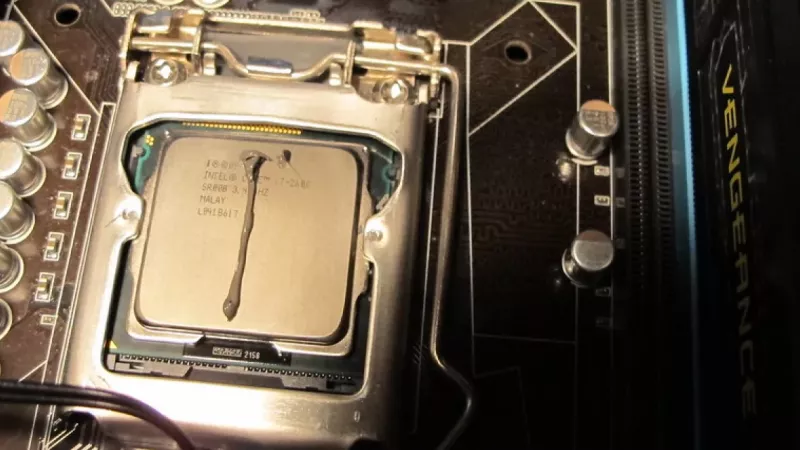
Every processor ships with a microscopic problem: no matter how flat its heat spreader looks, the metal is covered in tiny pits and ridges, and the cooler base carries the same imperfections. Press the two together and thousands of air pockets remain trapped between them — and air is one of the worst heat conductors inside a PC. Thermal compound exists to fill those voids, creating an uninterrupted path for heat to flow from the silicon into the heatsink. When the compound ages, that path narrows, temperatures climb, and performance quietly erodes long before anything visibly fails.
How Thermal Compound Degrades
Fresh paste is a suspension of thermally conductive particles — zinc oxide, aluminium oxide, silver, or synthetic diamond — held in a silicone or polymer carrier. Two ageing mechanisms work against it from the first power-on.
Dry-out happens as the liquid carrier slowly evaporates or separates from the filler. What remains is a chalky, cracked layer that can no longer conform to the surfaces it is supposed to bridge. Pump-out is subtler: each heating and cooling cycle makes the CPU die and the heatsink expand and contract at slightly different rates. This constant micro-flexing gradually squeezes compound out from the centre of the contact area — precisely where the heat density is highest.
Symptoms That Point to Aged Paste
- Idle temperatures sit 10–15 °C above the values the system showed when new, with no change in ambient conditions
- The CPU hits its thermal limit and throttles during workloads it previously handled with headroom to spare
- Fans ramp to maximum during light tasks such as web browsing or video playback
- The spread between individual core temperatures widens, suggesting uneven contact pressure or a thinning interface layer
- The machine shuts down abruptly under sustained load — the final stage of thermal protection
Before blaming the paste, rule out dust. A clogged fin stack produces identical symptoms, so clean the heatsink with compressed air and re-test. If readings remain elevated, the interface material is the probable culprit.
Realistic Replacement Intervals
There is no universal expiry date, because usage intensity matters far more than calendar age. Service statistics across large fleets suggest the following guidelines:
- Office desktops and light-duty systems: every 4–5 years, which often means once in the machine's whole life
- Gaming rigs and content-creation workstations: every 2–3 years
- Thin laptops under regular heavy load: every 1.5–2 years, since compact dies and high heat density accelerate pump-out
- Overclocked builds and 24/7 render nodes: an annual inspection is a sensible habit
The bundled grey compound pre-applied to budget heatsinks ages fastest of all. One application of a quality paste routinely outlives two applications of stock material.
If a repaste alone does not restore acceptable temperatures, the cooler itself may be undersized for the processor. Browsing the current range of air and liquid CPU coolers is worthwhile whenever a system runs hot even with a fresh interface layer.
Choosing a Replacement Compound
Ceramic and silicone pastes
Electrically non-conductive, inexpensive, and forgiving of imperfect application. Thermal conductivity typically lands between 4 and 8 W/mK — entirely adequate for stock-clocked CPUs and quiet office builds.
Metal-particle pastes
Silver- or aluminium-filled formulas reach roughly 8–13 W/mK and represent the sweet spot for gaming and workstation duty. Most are marketed as non-conductive, but prudent builders still keep them away from socket pins and surface-mounted components.
Liquid metal
Gallium alloys deliver exceptional transfer — upwards of 70 W/mK — but they are electrically conductive, corrode aluminium on contact, and demand experienced hands. Reserve them for delidded CPUs and high-end laptops serviced by professionals.
Graphite pads
A reusable sheet that never dries out and survives dozens of remounts. Absolute performance trails a premium paste by a few degrees, but for systems that are opened frequently the convenience can outweigh the deficit.
The Replacement Procedure
1. Prepare the workspace
Shut down, disconnect mains power, press the power button for ten seconds to drain residual charge, and ground yourself by touching bare case metal. Keep lint-free wipes and isopropyl alcohol (90 % or stronger) within reach.
2. Remove the cooler gently
Unclip or unscrew the mounting hardware, then twist the cooler a few degrees left and right before lifting. Old paste can act like glue; a straight pull risks yanking the CPU out of the socket with bent pins as the result. Warming the system for a few minutes beforehand softens stubborn compound.
3. Clean both surfaces
Wipe away the bulk of the residue with a dry cloth, then finish with alcohol until both the heat spreader and the cold plate show a streak-free finish. Let the alcohol flash off completely — thirty seconds is enough.
4. Apply the new compound
For most desktop CPUs, a pea-sized dot in the centre is all that is required; mounting pressure spreads it evenly. Large rectangular dies and workstation sockets benefit from a thin X pattern or manual spreading with a spatula.
5. Remount and verify
Lower the cooler straight down, tighten screws in a cross pattern in gradual stages, reconnect the fan header, and boot. Compare load temperatures against pre-service readings using the same stress test — a 5–20 °C improvement is typical when old paste was the bottleneck.
Mistakes That Undo the Work
- Applying far too much compound, which insulates rather than conducts and can squeeze onto the motherboard
- Leaving the protective plastic film on a brand-new cooler's cold plate
- Mixing residues of two different paste chemistries instead of cleaning down to bare metal
- Tightening one mounting screw fully before the others, tilting the cold plate
- Forgetting to reconnect the CPU fan header — modern boards may refuse to POST or shut down within seconds
Frequently Asked Questions
Can the old paste be reused if the cooler was only lifted for a moment?
No. Breaking the joint introduces air pockets that will not close on remounting. Even a brief separation calls for cleaning and a fresh application.
Does an unopened tube of thermal paste expire?
Sealed syringes stored at room temperature remain usable for two to three years, sometimes longer. If the contents have separated, discard the first oily squeeze and check that the remainder mixes to a uniform consistency.
Should graphics cards be repasted on the same schedule?
GPU dies are bare silicon with very high heat density, so factory paste can degrade within three to four years of heavy use. However, dismantling a card usually voids the warranty — postpone the job until coverage has lapsed unless temperatures demand action.
Is a higher W/mK rating always worth paying for?
Between a mid-range and a flagship paste the real-world difference is often just 2–4 °C. Consistency of application and correct mounting pressure influence results far more than the number printed on the box.
What if temperatures barely improve after a fresh application?
Verify that the cooler is rated for the CPU's actual power draw, that all fans spin, and that case airflow is not obstructed. An undersized heatsink cannot be fixed with paste alone — stepping up to a larger tower or an all-in-one liquid unit from the CPU cooling range is the structural solution.
Renewing thermal compound is a fifteen-minute task that returns lost performance, lowers noise, and extends hardware life — one of the highest-value maintenance jobs in computing. Pair a quality paste with a properly sized heatsink from the cooler catalogue, and a processor will hold its boost clocks for years. DistriNode supplies both compounds and cooling hardware for exactly this purpose across its partner network.
Leave a comment