

A laptop that takes three minutes to boot and freezes every time a browser tab opens feels like a laptop that needs replacing. Often it is not. Most slowdowns come from a short list of causes that can be fixed in an afternoon for little or no money, and the two upgrades that make the biggest difference cost a fraction of a new machine. This guide goes through the fixes in the order that finds the real bottleneck fastest, and ends with an honest test for when replacement really is the better deal.
First, find the bottleneck
Open Task Manager on Windows or Activity Monitor on a Mac while the laptop feels slow and look at the four columns: CPU, memory, disk and network. A disk sitting at 100 percent with the processor idle points to an old hard drive. Memory constantly above 85 percent points to too little RAM for how you work. A processor pinned at 100 percent with nothing open usually means malware, a stuck update or a runaway background app. Two minutes of looking saves hours of guessing.
1. Trim the startup apps
Every program that launches at boot stays resident afterwards. In Task Manager's Startup tab, disable anything you do not need in the first minute of the day: updaters, chat apps, printer helpers, game launchers. This alone often halves boot time on a machine that has accumulated five years of installs.
2. Free up disk space
Windows and macOS both slow down noticeably when the system drive is more than about 90 percent full, because there is no room for temporary files and updates. Empty the recycle bin, clear the Downloads folder, uninstall programs you have not opened this year and move large video folders to an external drive. Aim for at least 20 percent free space.
3. Tame the browser
Forty open tabs and a dozen extensions can consume more memory than every other program combined. Close tabs you are not reading, remove extensions you do not recognise, and consider a second browser profile for work so personal tabs do not pile up in the background.
4. Check for malware and bloatware
A full scan with the built-in security tool catches most problems. Then look at the installed programs list for toolbars, PC optimisers and trial software that came with the laptop; these often do more harm than the malware they claim to prevent.
5. Finish the updates
A half-installed operating system update can keep the disk busy for days. Run all pending updates, restart twice, and update the graphics and chipset drivers from the laptop manufacturer's support page rather than a third-party downloader.
6. Fix the power plan
Laptops set to a battery-saver plan while plugged in run the processor at a fraction of its speed. Switch to balanced or best performance when on mains power, and check that the plan actually changes when you plug in.
7. Cool it down
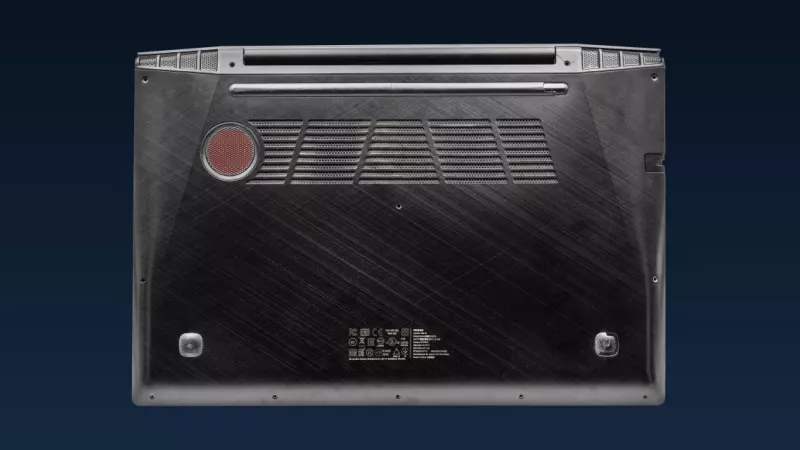
Heat is the silent performance killer. A laptop whose fan roars constantly is throttling its processor to avoid overheating, and it will feel slower every month as dust builds up. Blow the vents out with compressed air, keep it off soft surfaces, and if it is a few years old consider a laptop cooling pad, which typically drops temperatures by 5 to 10 degrees.
8. Replace the hard drive with an SSD
If the laptop still has a spinning hard drive, this is the single biggest upgrade available: boot times fall from minutes to seconds and every program opens faster. A solid state drive is inexpensive, and cloning software moves the whole system across so nothing needs reinstalling. It is the upgrade that makes a five-year-old laptop feel current.
9. Add memory
If Task Manager showed memory constantly full, more RAM stops the laptop from swapping to disk every time you switch windows. Check first whether the memory is upgradeable, because many thin laptops have it soldered in place; the manufacturer's spec sheet or a quick search on the model number answers that in a minute.
10. Reset Windows or macOS
When nothing else helps and the hardware is sound, a clean reset removes years of accumulated software problems in under an hour. Back up first, keep your files if the tool offers it, and reinstall only the programs you actually use.
When replacing really is the better deal
Be honest about three things. If the laptop is more than seven or eight years old, has DDR3 memory and no option for an SSD, upgrades are money spent on a platform that will still feel slow. If the battery no longer holds a charge and the hinge is loose, the upgrade budget is better spent on a new machine. And if your work genuinely needs more processing power, no amount of cleaning changes the processor. In that case, the current laptops range at DistriNode starts far below the cost of a new desktop, and the old machine, with an SSD, makes a perfectly good second computer for the family.
Leave a comment