

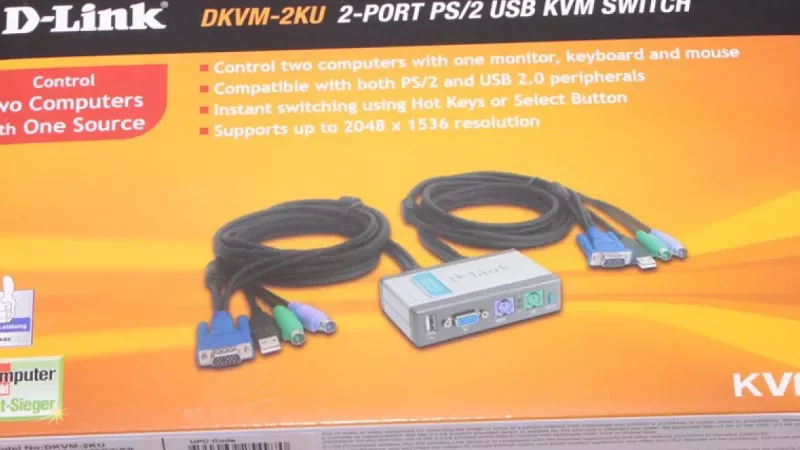
Walk into any server room, electronics laboratory or trading floor and you will notice the same constraint repeated: several computers, one operator, limited desk space. Equipping every machine with its own display and input set wastes money, power and square metres. A KVM switch — the abbreviation stands for keyboard, video, mouse — solves the problem at the hardware level, routing a single set of peripherals to multiple hosts and letting the operator flip between systems in under a second.
This guide explains how the technology works, which hardware categories exist, what to verify before issuing a purchase order and how to sidestep the classic deployment mistakes that end in flickering screens and unresponsive mice.
The Core Principle: One Console, Many Hosts
A KVM switch sits between the peripherals and the computers. The console side accepts a keyboard, a pointing device and one or more displays; the host side exposes a numbered row of ports, each wired to a different machine. Pressing a front-panel button, tapping a hotkey sequence or issuing a command through management software tells the unit which host currently owns the console. Every connected computer keeps running regardless of which one is selected — switching changes what you see and control, never what executes in the background.
Modern units are far more sophisticated than the mechanical rotary boxes of earlier decades. They emulate devices toward every host simultaneously, so an operating system never notices that its keyboard has just been handed to a neighbouring machine.
Two Technologies That Make Switching Seamless
EDID emulation on the video path
When a display disconnects, an operating system reacts immediately: it rearranges windows, drops the resolution or migrates applications to another screen. Quality switches prevent this by storing the monitor EDID block — the data structure describing supported resolutions and timings — and presenting it continuously to all hosts. Each computer believes the display never left, so desktops stay exactly as arranged. In datasheets the feature appears under names such as EDID emulation, dynamic device mapping or ghost-display prevention; whatever the label, treat it as mandatory for professional use.
USB device emulation on the input path
The same logic applies to input hardware. Without emulation, every switchover triggers a full USB enumeration cycle, adding two to five seconds before keystrokes register. Units with dedicated emulation controllers keep a virtual keyboard and mouse permanently attached to every host, shrinking the handover to milliseconds. For engineers who jump between systems dozens of times an hour, this single specification improves the daily experience more than any other line on the datasheet.
Hardware Categories at a Glance
Desktop switches with 2 to 4 ports
Compact housings intended for a single workstation controlling a handful of machines — a development PC beside a build server, or a corporate laptop next to a private desktop. They typically support HDMI or DisplayPort, include an extra USB hub port for flash drives, pass audio through to speakers and draw power from USB or a small adapter.
Rack-mounted switches with 8 to 32 ports
Built for 19-inch equipment cabinets, these 1U devices aggregate entire racks of servers onto a single console drawer. Many accept modular interface cables, so mixed fleets — some hosts with VGA, others with HDMI or DisplayPort — share one chassis without adapters scattered everywhere. Cascading lets several units be daisy-chained, scaling to hundreds of hosts controlled from one seat.
KVM over IP
The most capable class digitises the console signal and transports it across a network. An administrator in another building — or another country — receives BIOS-level access: rebooting a frozen host, entering firmware setup, mounting a remote ISO image and reinstalling an operating system. Unlike software remote-desktop tools, IP KVM keeps working when the host operating system has crashed, because capture happens at the video output rather than inside the OS.
Video Bandwidth: The Underestimated Specification
Video is by far the most demanding signal a switch carries, and bandwidth ceilings separate budget devices from professional ones. Match the switch generation to the display you actually run:
- 1920×1080 at 60 Hz — handled by practically every current model; HDMI 1.4 bandwidth is sufficient.
- 3840×2160 at 60 Hz — requires HDMI 2.0 or DisplayPort 1.2 across the entire chain, including every cable segment.
- 4K at 120–144 Hz or dual 4K displays — demands DisplayPort 1.4 or HDMI 2.1; only premium switches qualify, so read the specification sheet line by line.
The chain is only as strong as its weakest element: a certified switch fed through an ageing lead will still negotiate down to 30 Hz. When budgeting a deployment, reserve funds for verified USB cables and adapters rated for the bandwidth you intend to push through them.
A Procurement Checklist for Buyers
- Port count with reserve. Fleets grow. If four machines need control today, an eight-port chassis costs little extra and prevents a premature replacement.
- Connector inventory. List every host output and console input before ordering; one overlooked DVI port derails an otherwise clean installation.
- Emulation on both paths. Insist on EDID and USB emulation together — one without the other still produces window reshuffling or input delays.
- Hotkey flexibility. Default sequences sometimes collide with development environments or accessibility tools; a switch with remappable hotkeys avoids the conflict.
- External power option. Bus-powered units may brown out when several peripherals draw current simultaneously; a dedicated adapter stabilises operation.
- Peripheral compatibility. Keyboards with high polling rates, programmable macros or built-in hubs occasionally confuse cheaper emulation chips. Pair the switch with proven peripherals and input devices and confirm vendor compatibility lists before rollout.
A rule that has served procurement teams well: specify the switch for the monitor you expect to own in three years, not the one on the desk today. Display standards evolve faster than switching hardware gets replaced, and an underspecified unit becomes the bottleneck of an otherwise capable installation.
Deployment Notes for IT Teams
Label both ends of every cable before racking anything; a switch consolidates connections, and unlabelled looms turn the first maintenance window into archaeology. Keep video and USB runs under five metres unless the manufacturer explicitly certifies longer distances, or insert active extension where necessary.
Test the chosen hotkey sequence against the software your teams already run — trading platforms, IDEs and screen readers all register global shortcuts, and collisions surface at the least convenient moment. Across the projects DistriNode supports, the majority of reported switching faults trace back to cabling or hotkey conflicts rather than to the hardware itself, which makes a one-hour pilot on a bench the cheapest insurance available.
Frequently Asked Questions
Does a KVM switch add noticeable input lag?
Hardware switching operates in microseconds and is imperceptible even in competitive gaming or trading scenarios. Only KVM-over-IP introduces measurable latency, since the console travels across a network; for local desktop and rack units, lag is a non-issue.
Can one switch drive two monitors per computer?
Yes. Dual-display models carry two independent video paths to every host. Each connected computer must expose two video outputs, and both cable sets must meet the bandwidth of the target resolution, but the switching itself remains a single button press.
Why does the screen stay black for a few seconds after switching?
A blank interval means the video link is being renegotiated from scratch — typically a sign that the unit lacks EDID emulation or that an HDCP handshake is restarting. Switches with proper emulation reduce the transition to a brief flicker.
Will a KVM switch work with a laptop that only has USB-C?
Yes, through either a USB-C to HDMI or DisplayPort adapter plus a separate USB data connection, or more elegantly through a switch with native USB-C host ports that carry video and data over a single cable. Verify that the laptop port supports DisplayPort Alt Mode before purchasing.
How does a KVM switch differ from a plain HDMI switch?
An HDMI switch routes video only, and usually in the opposite direction — several sources into one display, with no input devices involved. A KVM switch moves the keyboard and mouse together with the picture, which is precisely what makes controlling multiple computers from one seat possible.
Leave a comment