

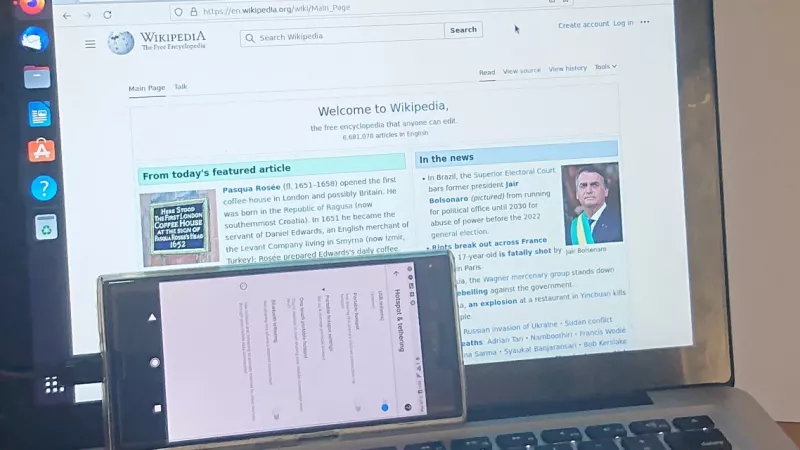
Most people discover the gap in their phone backup on the worst possible day: the screen is cracked, the phone is stolen, or it simply refuses to switch on, and the last full copy of ten years of photos turns out to be a cloud plan that stopped syncing months ago. A proper backup is boring, takes about fifteen minutes to set up, and is the single most valuable thing you can do with a phone this week. This guide covers Android and iPhone, backing up to a computer and straight to an external drive, and how to make sure the copy actually restores when you need it.
Why the cloud alone is not a backup
Cloud sync is convenient, but it mirrors your phone rather than protecting it. Delete an album by accident and the deletion syncs too. Run out of storage and new photos silently stop uploading. Lose access to the account, and everything behind it is gone with it. A real backup is a second copy that you control, stored somewhere the phone cannot reach on its own: a computer, an external drive, or both. The cloud then becomes a helpful third layer rather than the only one.
What actually needs backing up
- Photos and videos: the irreplaceable part, and usually the biggest.
- Contacts and calendar: small, but painful to rebuild from memory.
- Chat history: WhatsApp and similar apps keep their own backup settings that are separate from the phone backup.
- Two-factor codes: authenticator apps rarely transfer on their own. Export them or save the recovery codes before anything else.
- Documents and downloads: scanned IDs, PDFs and voice notes that live only on the phone.
Android to a computer
Connect the phone with a USB cable, unlock it and choose File transfer or MTP when the phone asks what the connection is for. The phone appears in File Explorer like a memory stick: copy the DCIM folder for the camera roll, plus Download, Documents and WhatsApp media if you use them. For a full system copy, most manufacturers offer a desktop tool, for example Samsung Smart Switch, that backs up apps, settings and messages in one go. For a complete export of your Google data, Google Takeout produces an archive you can download to the computer as well. If the phone is not recognised, try a different USB cable: charging-only cables are a very common cause of a phone that charges but never shows up.
iPhone to a computer
On a Mac, connect the iPhone and open Finder; on Windows, use the Apple Devices app or iTunes. Choose the option to back up all data to this computer and tick the encrypted backup box. Encryption is not just about privacy: only an encrypted local backup includes saved passwords, health data and Wi-Fi settings, so a restore brings the phone back exactly as it was. Photos can additionally be imported as plain files through the Photos app, which is handy if you want them browsable outside of Apple's ecosystem.
Straight to an external drive
You do not always need a computer in the middle. Modern phones with USB-C can write directly to a portable drive: connect a portable SSD or a large USB flash drive with a USB-C connector, open the phone's file manager and copy the folders across. On Android this works out of the box; on iPhone the Files app handles it. A small SSD is faster and far more robust than a flash drive for large photo libraries, and it doubles as the drive you back the computer up to. For households with several phones, a NAS on the home network can collect everyone's photos automatically over Wi-Fi, which removes the cable step entirely.
Make the backup safe: the three-copy rule
One copy on the phone, one on the computer or drive, one somewhere else, ideally a different building or the cloud. Drives fail, laptops get stolen with the phone in the same bag, and a single backup in the same room as the original protects you from the phone dying but not from theft or fire. The DistriNode team sees this pattern often: a careful backup drive that lived in the same laptop bag as the phone it was protecting.
Test the restore, not the backup
A backup that was never restored is a hope, not a plan. Once a quarter, open the backup folder on the drive and check that photos open, or run a restore to an old phone if you have one. Confirm the file count roughly matches what the phone reports, and check that the newest photos are there, because a stalled sync usually fails quietly at the recent end.
Common mistakes to avoid
- Trusting one cloud account and never checking whether it is full.
- Forgetting chat and authenticator apps, which have their own backup switches.
- Using a charge-only cable and concluding the phone is broken.
- Keeping the only drive in the phone's bag.
- Never opening the backup to see whether it contains anything.
A fifteen-minute monthly routine
Plug the phone into the computer or the SSD, copy the new photos and documents, run the phone's own full backup, then open one recent photo from the copy to confirm it is readable. Put a monthly reminder in the calendar. Fifteen minutes a month is the difference between a broken phone being an annoyance and a broken phone being a disaster.
Leave a comment