

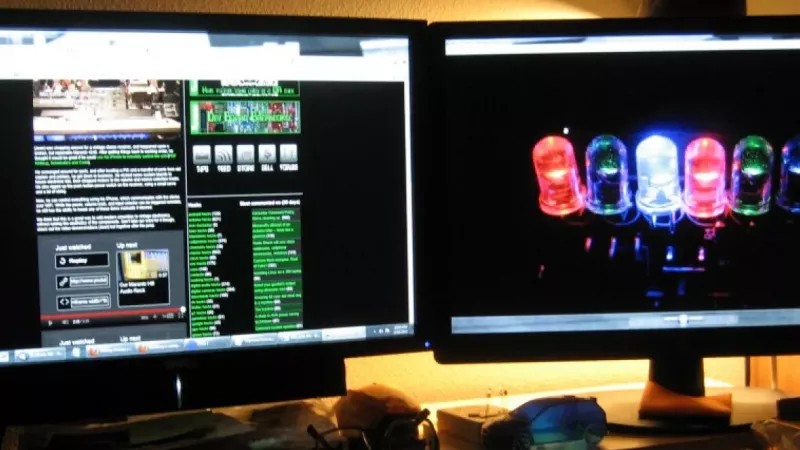
Few workstation upgrades deliver as much measurable value per euro as a second display. Analysts keep spreadsheets and dashboards open side by side, developers pair code with documentation, and support engineers watch ticket queues while composing replies. Yet the gap between a comfortable dual-screen workstation and a frustrating one usually comes down to three decisions made before anything gets plugged in: which screen sizes to combine, how to mount them, and which cables to run between the machine and the panels.
This guide works through each decision in order, with concrete pairings, weight ratings and bandwidth figures instead of vague recommendations, so the resulting setup performs well on day one and remains easy to service later.
Screen sizes: matched pairs and sensible mixes
The two safest pairings
For desks between 120 and 160 cm wide, two combinations dominate the market for good reason:
- 2 × 24-inch Full HD — roughly 106 cm of combined panel width. Pixel density near 92 PPI keeps text sharp at 100% scaling, and the footprint fits a standard office desk without forcing constant head rotation.
- 2 × 27-inch QHD (2560 × 1440) — about 122 cm combined. The step up to QHD matters: a 27-inch panel at Full HD drops to 81 PPI and text turns visibly soft, while QHD restores density to 109 PPI and makes the extra workspace genuinely usable.
Larger 32-inch pairs exist, but they demand a desk at least 160 cm wide and a seating distance of 80 cm or more, otherwise the outer edges leave the comfortable field of view. When comparing candidates in a computer monitors range, treat combined width and pixel density as the primary filters, and panel type or refresh rate as secondary ones.
Mixing different sizes
A mixed pair is perfectly workable when the roles are defined. A common professional pattern places a 27-inch QHD panel in the centre for the main application and a 24-inch display rotated to portrait orientation beside it for documents, logs or chat. Two details decide whether this arrangement feels coherent:
- Align the top edges, not the bottoms. The eyes travel along the upper third of the screens, and matched top edges reduce neck strain when glancing across.
- Keep pixel densities within about 15% of each other. Dragging a window from a 109 PPI panel to an 81 PPI panel changes its apparent size abruptly, which quickly becomes irritating.
Scaling behaviour across operating systems
Windows 10 and 11 apply scaling per display, so a 4K panel at 150% can sit next to a QHD panel at 100% without blurring modern applications. Older software using legacy rendering may still look fuzzy on the scaled screen, which is a further argument for keeping both displays at the same native density whenever the budget allows.
Stands and mounting: stability before styling
Where factory stands fall short
Bundled stands work acceptably for a single screen, but two of them consume 25 to 30 cm of desk depth each, rarely offer matching height ranges, and leave a dead zone between the panels. The moment two displays share one desk, a dedicated mount becomes the more ergonomic and space-efficient option.
Choosing between clamp, grommet and freestanding bases
- Desk clamp — the default choice; grips desktops from roughly 10 to 85 mm thick and frees the entire surface. Verify the rear edge of the desk is accessible and not flush against a wall panel.
- Grommet mount — bolts through a cable hole in the desktop; the most rigid option for sit-stand desks that get moved daily.
- Freestanding base — needs no desk modification and suits glass or stone surfaces, but reclaims some of the depth a clamp would save.
VESA patterns, weight ratings and arm types
Practically every office display exposes a 75 × 75 mm or 100 × 100 mm VESA pattern. The figure that actually needs checking is the load rating per arm: most dual gas-spring arms handle 2 to 9 kg per side, while a 32-inch panel with built-in speakers can exceed 10 kg and sag on an undersized spring. Static dual stands cost less and hold heavier panels, but repositioning them requires tools; gas-spring arms allow one-handed adjustment and are the better match for shared or sit-stand workstations. A well-stocked selection of monitor mounts will list both the VESA sizes and the per-arm weight window in the specification table — read the lower bound as carefully as the upper one, because an arm rated for 6 to 9 kg will drift upward with a 3 kg panel attached.
Rule of thumb: weigh the heavier of the two displays without its stand, add 20% headroom, and only then shortlist arms. Underrated springs, not broken clamps, cause the majority of dual-arm complaints.
Cable choices: HDMI, DisplayPort and USB-C
What each interface actually carries
- HDMI 2.0 — 18 Gbps; comfortable for Full HD at 240 Hz or 4K at 60 Hz. Sufficient for most office pairs.
- HDMI 2.1 — 48 Gbps; 4K at 120 Hz and beyond. Only worth specifying when the hardware on both ends supports it.
- DisplayPort 1.4 — 32.4 Gbps plus Display Stream Compression; the professional standard, and the only mainstream interface that supports multi-stream daisy-chaining.
- USB-C with DP Alt Mode — carries a DisplayPort signal, USB data and up to 100 W of charging over one cable; the backbone of modern laptop docking.
Daisy-chaining with DisplayPort MST
Displays equipped with a DisplayPort output socket can be chained: the PC feeds the first screen, and the first screen feeds the second. One GPU port then drives both panels. The constraints are firm — every monitor in the chain except the last must have a DP output, total bandwidth is shared across the chain, and macOS does not support MST for extended desktops. For Windows fleets, however, chaining halves the cabling back to the host.
Single-cable laptop workstations
A USB-C or Thunderbolt dock turns a dual-screen desk into a one-plug arrangement: two video outputs, wired network, peripherals and laptop charging travel through a single connector. When ordering, confirm the dock explicitly lists dual-display support at the intended resolution, because entry-level USB-C hubs frequently mirror rather than extend the second panel, and check the power delivery wattage against the laptop supply rating.
Length and certification
Signal integrity degrades with length. Stay at or below 2 m for passive HDMI 2.1 and DisplayPort 1.4 runs, use certified cables rather than unlabelled ones, and move to active or optical cables for anything beyond 5 m. A flickering or intermittently blanking second screen is, in the majority of service cases, a cable problem rather than a GPU fault.
Desk layout and cable management
Position the primary display directly in front of the chair and the secondary at a 15 to 30 degree angle, with top edges at or slightly below eye level and both panels roughly an arm's length away. Then invest ten minutes in routing:
- Run video and power cables through the channels built into the mount arms.
- Gather the excess under the desk in a cable tray or spine, never dangling in leg space.
- Use hook-and-loop straps instead of zip ties so the loom stays serviceable.
- Label both ends of each video cable — future troubleshooting takes seconds instead of minutes.
Frequently asked questions
Can two monitors from different manufacturers work together?
Yes, without restrictions. The operating system treats each display independently, so brand mixing is purely a matter of matching size, resolution and colour behaviour. Expect minor colour temperature differences between panels of different origin; most can be reduced with the on-screen menu presets.
Do both screens need the same refresh rate?
No. Windows drives each panel at its own rate, so a 144 Hz display beside a 60 Hz one is a valid configuration. Historically some GPU drivers showed micro-stutter with mixed rates during video playback, but current driver generations have largely eliminated the issue.
Is one ultrawide better than two separate displays?
It depends on the workflow. A 34-inch ultrawide removes the central bezel gap and suits timeline-based work such as video editing. Two separate panels offer more total pixels for the money, clean full-screen sharing of exactly one screen in video calls, and portrait rotation for the secondary — something no single ultrawide can replicate.
My laptop has one HDMI port. How do I attach two screens?
Three routes exist: a USB-C port with DisplayPort Alt Mode used alongside the HDMI output, a docking station driving both displays through one USB-C or Thunderbolt connector, or DisplayPort MST chaining when the monitors support it. A plain USB-A display adapter works as a last resort but relies on software compression and is best kept for static content.
How much load can a desk clamp really take?
A quality clamp spreads far more force than the mounted displays exert; the weak point is the desktop itself. Chipboard tops under 18 mm thick can compress and let the clamp work loose over months. On thin or hollow-core desks, add a reinforcement plate above and below the surface, or switch to a grommet or freestanding base.
Specified this way — density-matched panels, an arm rated with headroom, certified cabling at sensible lengths — a dual-display workstation stays comfortable through years of daily use. Business buyers sourcing complete fleets will find displays, arms and video cables with detailed compatibility data on every product card at DistriNode.
Leave a comment