

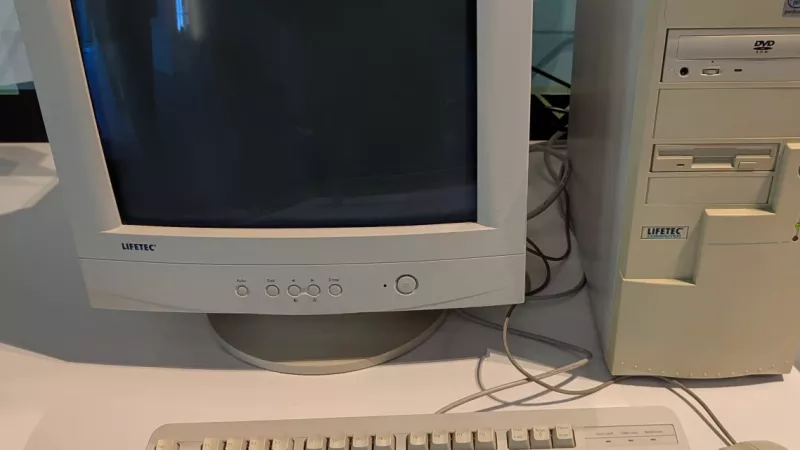
Windows 10 reached its end of support on 14 October 2025. Microsoft no longer ships the monthly security updates, bug fixes or technical help that kept the system safe for a decade. Your PC will still switch on and your programs will still run, but every month that passes without security patches makes it a softer target for malware, ransomware and banking fraud. For South African home users and small businesses that still rely on Windows 10, the question is no longer if you should act, but which option fits your computer and your budget.
This guide explains, in plain language, what the Windows 10 end of support means and what to do about it: how to check whether your current PC can move to Windows 11 for free, how the Extended Security Updates stopgap works and what it costs in South Africa, when a cheap SSD and RAM upgrade is enough to keep an older machine useful, and when it is smarter to buy a new laptop, desktop or mini PC. At the end you will find the most common mistakes, a checklist and answers to frequent questions.
What end of support actually means
End of support is not a kill switch. It is the day Microsoft stops maintaining the system. Understanding the difference helps you plan calmly instead of panicking.
Your PC keeps working
Windows 10 does not stop functioning on 14 October 2025. It boots, your files are intact and your applications open as before. Nothing is deleted and nothing is locked.
But the security updates stop
From that date there are no more monthly security patches for newly discovered flaws. Attackers actively look for unpatched systems, because every weakness found after end of support stays open forever. Over months, an unpatched Windows 10 machine becomes steadily riskier for online banking, e-mail and shopping.
Apps and drivers follow
Software makers gradually drop support too. Browsers, security tools, printer drivers and games will, over the next year or two, stop testing on Windows 10 and eventually stop working properly. The slide is slow, but it only goes one way.
Think of end of support like a car that no longer gets serviced or spare parts. It still drives today, but you would not want to rely on it for a long trip next year.
Step one: can your PC run Windows 11 for free?
If your Windows 10 licence is genuine and your hardware qualifies, the upgrade to Windows 11 is free. So the very first thing to do is check compatibility before you spend a cent.
The minimum requirements
Windows 11 is stricter than Windows 10, mainly for security reasons. The headline requirement that trips up older machines is TPM 2.0, a small security chip. Here are the official minimums from the Windows 11 specifications and the detailed requirements page.
| Component | Minimum for Windows 11 |
|---|---|
| Processor | 1 GHz, 2 or more cores, compatible 64-bit CPU |
| Memory | 4 GB RAM |
| Storage | 64 GB or larger |
| Security chip | TPM version 2.0 |
| Firmware | UEFI with Secure Boot |
| Display | 720p, larger than 9 inches |
How to check in two minutes
Download Microsoft PC Health Check from the Windows 11 page and run it. It tells you in one click whether your PC is eligible and, if not, which requirement it fails. Many machines from roughly 2018 onward qualify; many older ones fail on TPM or the processor list.
If it qualifies
Back up your files first, then upgrade using the steps on the how to upgrade to Windows 11 page or the official download tool. The upgrade keeps your files and most programs. This is the cheapest and simplest outcome.
Your five realistic options
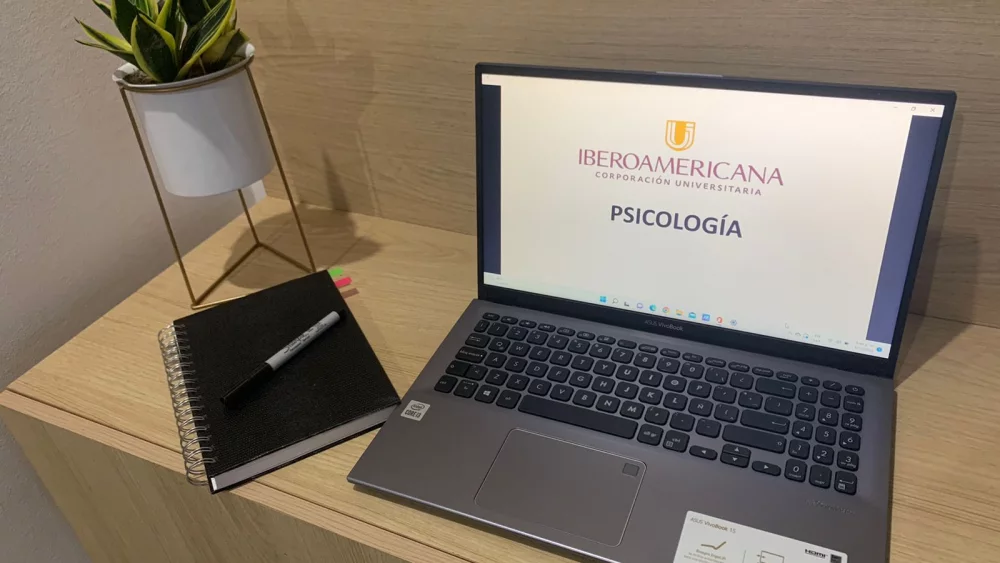
Whether or not your PC passes the check, you have five sensible paths. The right one depends on the age of the machine and what you use it for.
| Option | Best when | Cost | Catch |
|---|---|---|---|
| Free upgrade to Windows 11 | PC passes the health check | Free | Only for eligible hardware |
| Extended Security Updates (ESU) | You need a few more months | Low, see below | Security only, temporary |
| Upgrade the old PC (SSD + RAM) | Machine is Windows 11 capable but slow | Moderate | Cannot fix a missing TPM or unsupported CPU |
| Buy a new PC | Machine is old and not eligible | Higher | Plan the budget, Black Friday helps |
| Switch to another OS | Light use, tech-comfortable | Free | Learning curve, some apps unavailable |
Why the security risk is real
It is tempting to assume that a home PC is too small to interest anyone. In practice, most attacks are automated and target whole categories of unpatched machines, not specific people.
Ransomware and banking fraud
The most damaging attacks encrypt your files and demand payment, or quietly capture the passwords you type into banking and shopping sites. These rely on known flaws that security updates would normally close. After end of support, those doors stay open.
Business data and POPIA
For a South African business, customer data on an unpatched machine is a compliance problem as well as a security one. The Protection of Personal Information Act expects reasonable safeguards, and running software that no longer receives security updates is hard to defend if data is leaked.
The risk compounds
One missed patch is survivable. A year of missed patches is a machine full of open, well-documented weaknesses. The danger is not a single dramatic day but the slow accumulation of unfixed holes.
You do not need to be a target to be a victim. Automated attacks sweep the internet for unpatched systems, and after end of support, Windows 10 is exactly what they look for.
Option B: Extended Security Updates as a stopgap
If you cannot upgrade or buy right now, Microsoft offers a paid consumer safety net so you are not exposed while you plan.
What ESU is
Extended Security Updates deliver critical and important security patches only. There are no new features and no general bug fixes. According to Microsoft on the end of support page, consumer ESU runs only until 13 October 2026, so you have just a few days left to move. Businesses can buy ESU for up to three years, until October 2028.
What it costs in South Africa
For consumers there are three ways to enrol: free if you sync your PC settings with a Microsoft account, free by redeeming 1,000 Microsoft Rewards points, or a one-time payment of about 30 US dollars in the local currency equivalent, which covers up to ten devices on the same account. A Microsoft account is required in every case.
| ESU enrolment option | What you do | Cost |
|---|---|---|
| Sync PC settings | Turn on Windows Backup with a Microsoft account | Free |
| Microsoft Rewards | Redeem 1,000 Rewards points | Free |
| One-time purchase | Pay once, covers up to 10 devices | About 30 USD in local currency |
Treat it as a bridge, not a destination
Consumer ESU keeps you safe only until 13 October 2026, so it is a countdown, not a cure. Use the remaining days to pick the right upgrade or new machine rather than staying on an ageing system.
ESU is a very short bridge. For consumers it ends on 13 October 2026, so use it only to cross from Windows 10 to a modern PC, not to stand on.
Option C: breathe new life into an eligible PC
If PC Health Check says your machine qualifies for Windows 11 but it feels slow, two cheap upgrades often make it feel new again, and they cost a fraction of a replacement.
An SSD is the biggest single improvement
If your computer still runs on a mechanical hard drive, moving the system to a solid state drive is the upgrade you will feel most. Boot times drop from minutes to seconds and programs open instantly. Browse options in our solid state drives (SSD) category.
More memory for heavy tabs and multitasking
If the machine slows down with many browser tabs or several programs open, going from 4 or 8 GB to 16 GB of memory (RAM) smooths everything out. Check the type your PC uses before buying.
When upgrading is not enough
Hardware upgrades cannot add a TPM 2.0 chip to a machine that lacks one, nor put an old processor onto Microsoft list of supported CPUs. If PC Health Check fails on those points, no amount of SSD or RAM will make Windows 11 install cleanly, and it is time to look at a new PC.
Option D: buy a new PC at the right time
For a machine that is simply too old, a new computer is the clean solution: it ships with Windows 11, carries a warranty and will receive updates for years. The good news is that timing is on your side.
Laptop, desktop or mini PC
A laptop suits anyone who needs to move around or save space. A desktop or workstation gives more power and is easy to upgrade later. A compact mini PC is quiet, cheap to run and perfect for office work, while a ready-built desktop PC arrives assembled, tested and ready to use.
What to look for in 2026
Aim for at least 16 GB of RAM, a solid state drive of 512 GB or more and, of course, Windows 11 pre-installed. These specifications will stay comfortable for years rather than feeling tight within months.
Black Friday timing
Windows 10 end of support landed shortly before the Black Friday sales, but consumer ESU ends on 13 October 2026, well before them. If your machine is not eligible for Windows 11, plan the switch now: if you wait for the sales, the old PC will be without security updates for a few weeks, so limit online banking and shopping on it. Keep the receipt and check the warranty terms.
If you are going to replace the PC anyway, waiting for the Black Friday sales can save real money. But ESU ends on 13 October 2026 and will not cover the gap, so limit online banking and shopping on the old PC in the meantime.
Option E: a different operating system
For older machines used only for browsing, e-mail and documents, a free alternative to Windows can extend their life for years, if you are comfortable learning something new.
Linux
Modern, beginner-friendly Linux versions run smoothly on hardware that Windows 11 rejects. They are free, secure and well suited to web, e-mail and office work. The trade-off is that some Windows-only programs and a few games will not run.
ChromeOS Flex
Google ChromeOS Flex turns an old laptop into a fast, Chromebook-like device for web-based tasks. It is ideal for a second machine or for a child who mainly uses a browser.
Be realistic about apps
Before switching, list the programs you truly need. If your work depends on specific Windows software, an alternative OS may not be practical, and Windows 11 on new hardware is the safer route.
What changes when you move to Windows 11
Some people delay the move because they fear a complicated new system. In daily use the change is smaller than it looks, and most of it is for the better.
A familiar but tidier interface
The Start menu and taskbar are centred and the design is cleaner, but the basics work as before. Within a day or two most people stop noticing the difference. Settings, File Explorer and the desktop all behave in the way you already know.
Security switched on by default
Windows 11 uses the TPM 2.0 chip and Secure Boot to protect your PC from the moment it starts. The same requirements that make older machines ineligible are exactly what make the new system harder to attack, which matters more than ever after Windows 10 stops receiving patches.
Better on modern hardware
On a machine with a solid state drive and 16 GB of memory, Windows 11 feels fast and responsive. If you combine the move with an SSD upgrade or a new PC, the improvement in everyday speed is immediately noticeable.
Most of the worry about Windows 11 is about the first hour. After that, it is simply a tidier, safer version of the Windows you already use.
Back up before you do anything
Every path above involves changing your system, so protect your data first. A good backup turns a risky afternoon into a calm one.
The simple rule
Keep your important files in at least two places, for example an external drive and a cloud account. Photos, documents and anything irreplaceable come first.
External storage is cheap insurance
An external SSD or hard drive is an inexpensive way to copy everything before an upgrade or a move to a new PC. You will also use it afterwards for ongoing backups.
Note your logins
Before wiping or replacing a machine, make sure you know your Microsoft account, Wi-Fi and e-mail passwords, and that any two-factor codes are reachable on your phone.
Common mistakes after Windows 10 end of support
- Doing nothing and carrying on. The machine works, so the risk feels invisible, until it is not.
- Relying on ESU as a long-term plan. Consumer ESU ends on 13 October 2026.
- Buying RAM or an SSD for an ineligible PC. Upgrades cannot add a missing TPM 2.0 or an unsupported processor.
- Upgrading without a backup. Always copy your files first.
- Buying the cheapest new PC with 8 GB and a small disk. It will feel tight within a year.
- Ignoring the free Windows 11 upgrade. Many 2018-and-newer PCs qualify at no cost.
- Forgetting Black Friday. If you must buy, the timing is unusually good.
Checklist
- Run PC Health Check to see if your PC is eligible for Windows 11.
- Back up your important files to an external drive and the cloud.
- If eligible, upgrade to Windows 11 for free.
- If not eligible, enrol in ESU now; consumer ESU ends on 13 October 2026, so plan the replacement soon.
- If the PC is eligible but slow, add an SSD and more RAM.
- If the PC is old, plan a new laptop, desktop or mini PC, ideally during Black Friday.
- For light use, consider Linux or ChromeOS Flex.
- Confirm 16 GB RAM, a 512 GB SSD and Windows 11 on any new machine.
Frequently asked questions
Is my Windows 10 computer now unsafe to use?
Not instantly, but the risk grows every month without security updates. Avoid online banking and shopping on an unpatched machine, and move to a supported option as soon as you can.
Is upgrading to Windows 11 really free?
Yes, if your Windows 10 licence is genuine and your hardware meets the requirements. PC Health Check confirms eligibility in one click.
Can I just keep using Windows 10 with ESU?
For consumers, ESU provides security updates only until 13 October 2026, with no new features or general fixes. Businesses can buy ESU for up to three years, until October 2028.
Will my files be deleted on 14 October 2025?
No. Nothing is deleted. Your PC keeps working exactly as before, it simply stops receiving security updates.
My PC fails the check on TPM. Can I add one?
Some desktop motherboards allow a TPM module or enabling firmware TPM in the BIOS, but on most laptops and older boards it is not possible. If PC Health Check fails on the processor too, a new PC is the realistic answer.
Not sure whether to upgrade your current PC or replace it? In the DistriNode catalogue you will find Windows 11 laptops, desktops, mini PCs and ready-built machines, plus SSDs and memory to refresh an eligible computer. Tell us your PC model and how you use it, and we will help you choose the right path: distrinode.co.za.
Leave a comment