

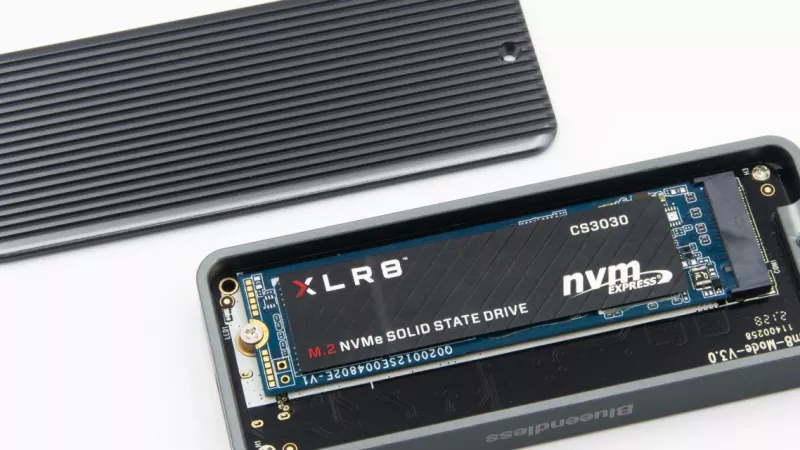
Choosing an SSD in 2026 is less about chasing the biggest speed number on the box and more about matching the right drive to the slot, the workload and the budget you actually have. A well-chosen solid state drive is still the single most noticeable upgrade for an older laptop or desktop: boot times shrink, applications open almost instantly and the whole system feels younger. A badly chosen one, on the other hand, either does not fit, runs at a fraction of its potential, or fills up within months.
This guide walks through the full decision process for an internal SSD, the way we would explain it to a customer in Johannesburg, Cape Town or Durban who wants to spend their rand wisely: which form factor your machine takes, NVMe versus SATA, how much capacity makes sense, TLC versus QLC flash, DRAM cache versus DRAM-less designs, endurance, heatsinks, cloning versus a clean install, and finally why 2026 prices are moving and when it makes sense to buy. Live prices for every drive we mention are in our solid state drives (SSD) category.
Step one: forget speed for a moment and look at your machine
The most common SSD mistake we see is a customer arriving with a drive that physically or electrically cannot work in their computer. Before comparing brands, open the manual or the manufacturer support page of your laptop, desktop or motherboard and write down three things: which drive bays or slots exist, which interfaces those slots support, and the maximum length of drive they accept. Ten minutes of homework here saves a return trip and a wasted weekend.
Crucial puts it bluntly in its own support article on M.2 drives: use your hardware documentation to verify that your system will support a given drive before purchase, and it stresses that this cannot be emphasised enough. You can read that guidance in the Crucial overview of mSATA and M.2 SSDs. Manufacturers such as Crucial also offer an online upgrade selector and system scanner that lists compatible drives for many branded laptops and desktops.
Where to find the information quickly
- Laptops: search for the exact model number (not just the series name) plus “service manual” or “user guide”. The storage section usually lists slot type and supported lengths.
- Desktops you built yourself: the motherboard manual has a storage table that shows every M.2 slot, whether it runs from the CPU or chipset, and which SATA ports are disabled when a given M.2 slot is in use.
- Branded office PCs: many business desktops have one M.2 slot and one or two 2.5-inch bays; the spec sheet from the manufacturer is the safest reference.
When the manual is not available
If the paperwork is long gone, the physical check still works: power the machine down, unplug it, remove the battery if it is removable, and look. A 2.5-inch drive is a small rectangular box with a SATA connector; an M.2 drive is a thin stick screwed flat onto the board. Photograph the label on the existing drive, because it often says whether it is SATA or NVMe, and that tells you what the slot supports at minimum.
Form factors explained: 2.5-inch SATA, M.2 SATA and M.2 NVMe
“SSD” describes the storage technology, not the shape. Three physical formats cover almost everything a home or office user will encounter, and they are not interchangeable. The table below summarises the practical differences.
| Format | Interface | Typical connector / key | Where you find it |
|---|---|---|---|
| 2.5-inch SATA | SATA III (6 Gbit/s) | SATA data + SATA power cable | Older laptops, most desktops, upgrades from hard drives |
| M.2 SATA | SATA III (6 Gbit/s) | Usually B+M key (two notches) | Many older laptops, some compact PCs |
| M.2 NVMe | PCI Express with NVMe protocol | M key (one notch) | Most current laptops, desktops and the PS5 expansion slot |
The SATA III bandwidth figure of 6 Gbit/s, roughly 600 MB/s of usable throughput, comes from the SATA revision 3.0 specification described in the SATA article on Wikipedia. That ceiling applies equally to a 2.5-inch SATA drive and an M.2 SATA stick: the shape changes, the interface limit does not.
What the numbers 2242, 2260 and 2280 mean
M.2 drives are named by width and length in millimetres. A 2280 drive is 22 mm wide and 80 mm long, which is the size Crucial says its current drives ship in. Shorter 2230 and 2242 drives appear in thin laptops, handheld gaming PCs and some mini PCs; the longer 22110 size is mostly found in workstations and servers. A slot designed for 2280 will not hold a 22110 drive, and a short 2230 slot cannot take a 2280 stick, so measure or check before you order.
Keys and notches: the little gap that matters
The edge connector of an M.2 drive has one or two notches called keys. According to the M.2 article on Wikipedia, these keying notches indicate supported interfaces and prevent incompatible installations. In practice, M.2 SATA drives are typically B+M keyed, NVMe drives are M keyed, and slots with A or E keys are meant for Wi-Fi and Bluetooth cards. Crucial notes explicitly that its drives will not fit those A or E keyed slots.
An M.2 SATA drive may physically fit an M-key slot that only speaks NVMe, and then simply not appear in the BIOS. “It fits” is not the same as “it works”.
NVMe or SATA: which one should you buy?
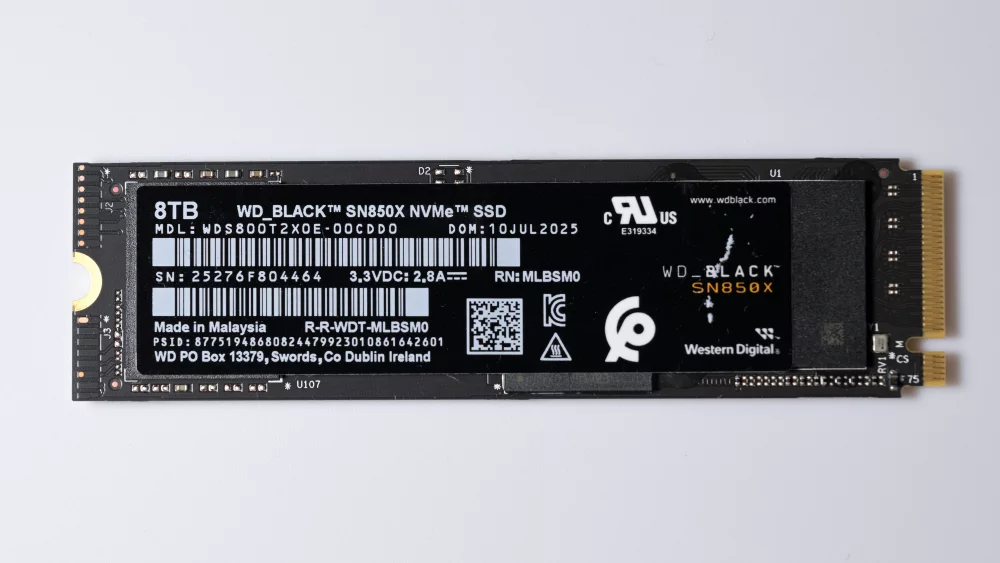
If your machine has an M.2 slot that supports NVMe, an NVMe drive is the default choice in 2026. NVMe was designed for flash storage: the NVM Express article explains that older protocols like AHCI were built for slow spinning disks, while NVMe uses multiple long command queues and lower latency. The result is not only higher sequential throughput but snappier behaviour under many small requests, which is what an operating system mostly does.
SATA still has a place. If you are reviving an older laptop that only has a 2.5-inch bay, a SATA SSD is the right and only answer, and the jump from a mechanical hard drive to any SSD is far bigger than the jump from SATA to NVMe. SATA drives also make sense as a second, larger drive in a desktop for photos, archives and game libraries that do not need maximum speed.
A word on PCIe generations
NVMe drives are sold as PCIe Gen3, Gen4 and Gen5. We have a separate article that compares Gen4 and Gen5 in detail, so here is only the short version: a newer drive works in an older slot, just at the older slot's speed. For an office PC or a typical home laptop, a good Gen4 drive is more than enough, and Gen5 makes sense mainly for heavy content creation on a current platform with good cooling.
Quick decision table
| Your situation | Sensible choice | Why |
|---|---|---|
| Old laptop with hard drive, no M.2 slot | 2.5-inch SATA SSD | Only option, still a dramatic improvement |
| Laptop with M.2 slot, SATA-only | M.2 SATA (B+M key) | NVMe would not be recognised |
| Modern laptop or desktop with NVMe slot | M.2 NVMe, Gen4 class | Best balance of price and responsiveness |
| Desktop needing lots of space | NVMe for system + larger SATA or NVMe for data | Fast boot drive, cheaper bulk storage |
| PS5 storage expansion | M.2 NVMe PCIe Gen4 with heatsink | Sony requirement, see below |
Laptops, desktops and consoles: checking compatibility in practice
Laptops are the trickiest. Some ultrabooks have a single M.2 slot already occupied, so an upgrade means replacing and migrating rather than adding. Some budget models use soldered storage with no slot at all, in which case an internal upgrade is impossible and an external drive is the realistic route. When you shop for a new machine in our laptops and notebooks category, check the specification for a free M.2 slot if you expect to need more space later.
Desktops are more forgiving, but the motherboard sets the rules. A board may have three M.2 slots where only one is wired to the CPU at full speed, and populating another can disable a pair of SATA ports. If you are planning a new build, compare storage layouts in our motherboards category rather than assuming every slot is equal.
The PlayStation 5 is a special case
Sony publishes precise requirements for the PS5 expansion slot on its South African support page: a PCI-Express Gen4x4 M.2 NVMe SSD with an M key, between 250 GB and 8 TB, in sizes from 2230 up to 22110, with a sequential read speed of 5,500 MB/s or faster recommended. Sony also states that the drive requires effective heat dissipation, such as a heatsink, and limits the total thickness including the cooler to 11.25 mm. Update the console's system software before installing.
Mini PCs and handhelds
Small form factor PCs and handheld gaming PCs often use the short 2230 or 2242 length and may have tight thermal limits. Treat the manufacturer's stated length as non-negotiable, and be careful with single-sided versus double-sided drives where clearance is very small.
How much capacity do you really need?
We have a separate article about whether 256 GB is enough, so we will keep this practical. Capacity should cover what you store today, the growth you expect over the next three to four years, and some free space, because SSDs perform and wear best when they are not packed to the last gigabyte. Windows updates, browser caches, phone backups and modern games all grow quietly over time.
- Light office and browsing: 500 GB class is a comfortable minimum for a new installation in 2026.
- General home use with photos and some games: 1 TB is the sweet spot for most buyers.
- Gaming, video editing, large photo libraries: 2 TB or more, or a 1 TB system drive plus a second data drive.
Larger drives also tend to be faster and more durable than smaller drives in the same product line, because they have more flash chips working in parallel and more cells to spread writes across. Check the manufacturer specification sheet for each capacity rather than assuming the 500 GB and 2 TB versions behave the same.
If the budget forces a choice between a faster small drive and a slightly slower larger drive, most home users are happier with the larger one. Running out of space hurts more than a few hundred megabytes per second.
TLC versus QLC: what kind of flash is inside?
Flash memory stores data as electrical charge in cells. As the multi-level cell article explains, TLC cells store three bits each and QLC cells store four. More bits per cell means more capacity for the same silicon and therefore lower cost per gigabyte, but also tighter margins between charge levels, which generally means lower endurance and slower sustained writes. The same source notes that SLC, with one bit per cell, has higher write speeds and higher cell endurance, which is why manufacturers use part of the drive as a fast SLC cache.
When QLC is perfectly fine
For a laptop that mostly browses, streams, handles documents and loads games, QLC is a reasonable way to get more capacity for the money. Everyday reads are fast, and the SLC cache absorbs normal bursts of writing.
When TLC is worth paying for
If you regularly copy very large files, edit video, run virtual machines or move entire game libraries around, choose TLC. When a QLC drive's SLC cache fills during a long write, speed can drop sharply, and TLC handles that situation more gracefully. Manufacturers do not always print the flash type prominently, so check reviews or the detailed datasheet.
DRAM cache, DRAM-less and HMB
An SSD controller keeps a map of where every piece of data physically lives. Traditionally that map is held in a small DRAM chip on the drive. Cheaper drives skip the DRAM chip. On NVMe drives, the Solid-state drive article on Wikipedia describes Host Memory Buffer (HMB) technology, which lets the SSD use a portion of the system's own RAM instead of a built-in DRAM cache, reducing cost while keeping read performance high.
For a typical laptop or home desktop, a DRAM-less NVMe drive with HMB is a sensible budget option. For a heavily used workstation, a database machine or a drive that will be close to full most of the time, a model with its own DRAM is the safer pick. Be more cautious with DRAM-less SATA drives, because SATA has no HMB equivalent.
Endurance and warranty in two minutes
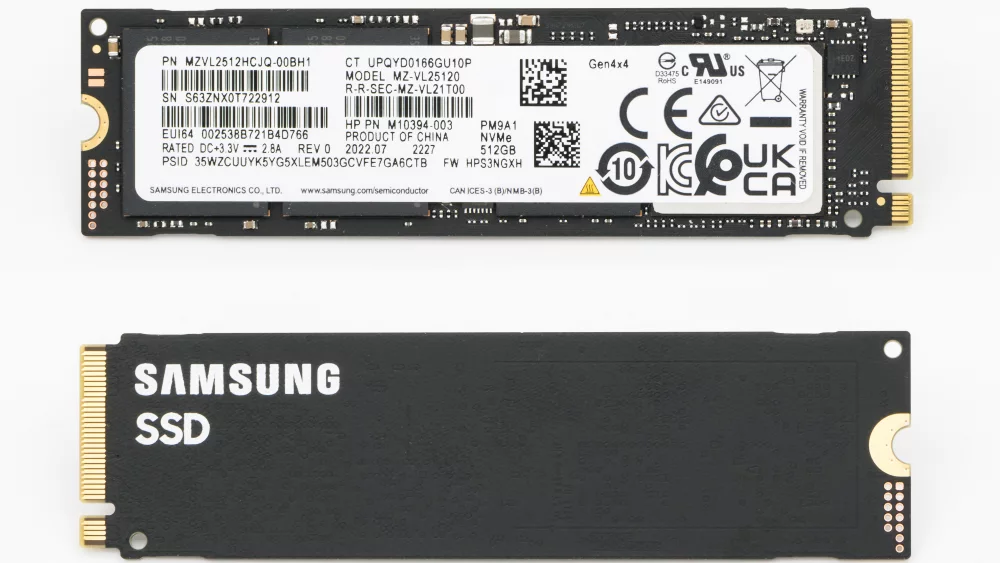
Endurance is usually stated as TBW, terabytes written. We cover TBW and DWPD in a dedicated article, so here is just the essential point: Samsung's SSD warranty terms state that coverage lasts for the stated time period or the TBW, whichever comes first. For ordinary users the time limit nearly always arrives first, so TBW matters mainly for people writing large volumes of data every day. Warranty applies according to the manufacturer's terms.
How to read the spec sheet
Compare TBW between drives of the same capacity, not across capacities. A higher TBW usually indicates better flash or more generous overprovisioning, and it is a useful tie-breaker between two otherwise similar drives.
Heatsinks: when you need one and when you do not
Fast NVMe drives can get hot during sustained transfers, and when they get too hot they throttle. Many desktop motherboards include an M.2 cover with a thermal pad; if yours does, a drive without its own heatsink is usually the right choice, because stacking two coolers can make the assembly too tall. In laptops there is rarely room for a heatsink at all, so buy the bare version and rely on the laptop's own thermal design.
The PS5 is the clear exception, where Sony requires a cooling structure. For desktops without an M.2 cover, a drive with a slim heatsink, or a separate inexpensive heatsink, is a sensible addition for high-end Gen4 and especially Gen5 drives.
Heatsink checklist
- Desktop board with M.2 shield: buy a bare drive, remove the plastic film from the thermal pad.
- Laptop: bare drive only, check thickness if single-sided is specified.
- PS5: heatsink required, total thickness within Sony's limits.
- Small form factor PC: check clearance under the graphics card before buying a tall cooler.
Cloning your old drive or starting fresh?
There are two ways to move to a new SSD. Cloning copies your existing system, programs and files to the new drive so that everything looks the same afterwards. A clean install means installing the operating system fresh and copying your files back. Both are valid; the right choice depends on the condition of your current system.
When cloning makes sense
Clone when your current installation is healthy and you simply need more speed or space. Manufacturers provide tools: Samsung offers its Data Migration utility alongside Magician on the Samsung tools and software page, and Crucial provides Acronis True Image for Crucial, described as software that can clone drives and back up your operating system, applications, settings and data. These tools are generally tied to the brand of the target drive, so check before buying.
When a clean install is better
Choose a clean install if the old system is slow, cluttered, infected or years old, or if you are moving from an old hard drive with a legacy partition layout. Back up your documents, photos and browser data first, make a list of the software you need, and make sure you have your existing licence and account details ready.
Whichever route you take, make a backup before you start. Cloning tools are reliable, but selecting the wrong source and destination disk is a mistake that cannot be undone.
After installation: firmware, health and TRIM
Once the drive is installed, install the manufacturer's management tool. Samsung's Magician software lists features such as firmware update, drive health status and performance benchmarking, and the same page explains that its performance optimisation relies on the operating system's TRIM support. Note that Samsung states several Magician features are not supported for non-Samsung drives, so use the tool from your own drive's manufacturer. Check for firmware updates, confirm that the drive shows the expected capacity, and leave some space free.
External SSDs: a quick note
If your laptop has no free slot or uses soldered storage, an external drive is the practical answer. Portable SSDs connect over USB or Thunderbolt and are useful for backups, media libraries and moving projects between machines. We compare external SSDs and USB flash drives in a separate article. Browse current models in external solid state drives, or, for small files and quick transfers, our USB flash drives.
Why SSD prices are moving in 2026, and when to buy
Memory pricing is cyclical, and late 2026 is a period of upward pressure. Market research firm TrendForce forecast on 30 September 2026 that overall NAND flash contract prices will rise 15 to 20 percent quarter on quarter in the fourth quarter of 2026, driven mainly by demand from AI servers. You can read the details in the TrendForce press release.
The same report adds an important nuance for home buyers: price increases for client SSDs, the drives used in PCs and laptops, are expected to remain modest because PC makers hold inventories built in the first half of the year, while enterprise SSD prices are rising faster. Contract prices also take time to filter through to retail, and in South Africa the exchange rate adds another variable. Our practical advice: if you need a drive now, there is little reason to wait for a price drop that the market does not currently forecast. If you have a planned upgrade for later in the year, buying sooner rather than later is the more cautious choice.
Budget planning in rand terms
Rather than quote prices that change weekly, think in classes. Entry-level SATA and DRAM-less NVMe drives are the cheapest way to revive an old machine. Mainstream TLC Gen4 NVMe drives are the best value for most new installations. Premium Gen4 with DRAM and Gen5 drives are for people who will actually use the extra performance. Compare current rand prices across all three classes in our SSD category before deciding.
Common mistakes to avoid
- Buying an NVMe drive for a laptop whose M.2 slot only supports SATA.
- Ordering a 2280 drive for a device that only accepts 2230 or 2242.
- Choosing the smallest capacity to save money and running out of space within a year.
- Picking a DRAM-less QLC drive for heavy video editing or large daily file copies.
- Stacking a drive's own heatsink under a motherboard cover that already has one.
- Cloning without a backup, or cloning a system that should have been reinstalled.
- Forgetting the small M.2 mounting screw or standoff when the old machine had a 2.5-inch drive only.
- Paying for Gen5 speed in a machine whose slot runs at Gen3.
Your SSD buying checklist
- Identify the exact model of your laptop, desktop or motherboard.
- Check which slots exist: 2.5-inch bay, M.2 slots, and their supported lengths.
- Confirm whether each M.2 slot supports SATA, NVMe or both, and which PCIe generation.
- Decide on capacity based on current use plus three to four years of growth.
- Choose TLC for heavy writing, QLC is fine for light use and big capacity on a budget.
- Prefer DRAM or HMB on NVMe; be careful with DRAM-less SATA.
- Plan cooling: board cover, bare drive, or heatsink version.
- Decide between cloning and a clean install, and make a backup first.
- Install the manufacturer's tool, update firmware, check health.
Frequently asked questions
Will an NVMe SSD work in any M.2 slot?
No. The slot must support PCIe and NVMe. Some M.2 slots, especially in older laptops, are SATA-only. Check the manual or the manufacturer's specification before buying.
Can I use a PCIe Gen5 drive in a Gen4 slot?
Generally yes, the drive falls back to the slot's speed. You simply will not benefit from the extra headroom you paid for.
Is QLC unreliable?
Not for typical use. QLC has lower endurance than TLC in principle, but for normal home and office workloads the warranty period is usually reached long before the TBW rating.
Do I need to reinstall Windows when I upgrade to an SSD?
Not necessarily. Cloning with the drive manufacturer's tool keeps your current setup. A clean install is better when the old system is slow or problematic.
Will SSD prices drop soon?
Current forecasts point the other way. TrendForce expects NAND contract prices to rise in Q4 2026, although client SSD increases are expected to be more modest than enterprise ones.
Ready to upgrade? Compare 2.5-inch SATA, M.2 SATA and M.2 NVMe drives in our solid state drives range with live prices and specifications, and pick the one that matches your machine and budget. If you are not sure which slot your device has, check the manual first and then browse the range at distrinode.co.za.
Leave a comment