

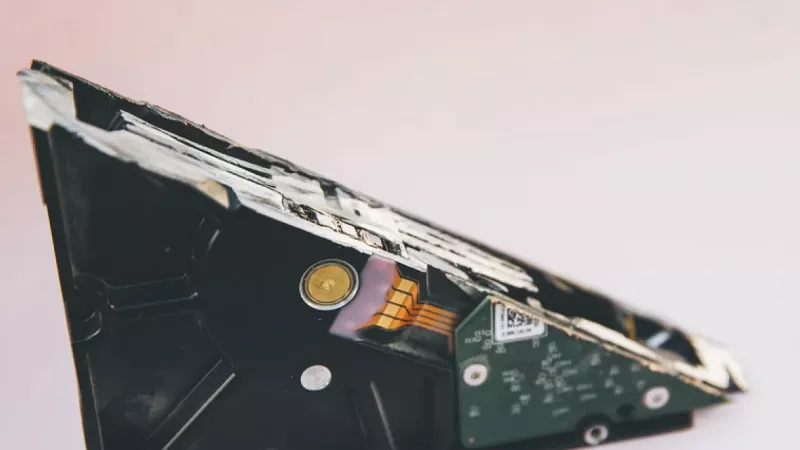
Hard drives fail, laptops get stolen, ransomware encrypts entire networks, and a single misplaced click can wipe out a folder that took years to build. Yet most households and many small companies still keep their photos, invoices, contracts and project files in exactly one place. The 3-2-1 backup strategy exists to close that gap. It is simple enough to explain in one sentence, flexible enough to scale from a family photo archive to a ten-person office, and it has remained the reference model for data protection for more than two decades.
What the 3-2-1 rule actually says
The strategy is a set of three minimum requirements that any resilient backup plan should meet:
- 3 copies of your data. The original working copy plus at least two backups. If one copy is corrupted or lost, two independent fallbacks remain.
- 2 different storage media. The copies must not all live on the same physical unit. A second partition on the same disk is not a second medium, and two folders on the same drive protect nothing.
- 1 copy stored offsite. At least one backup must be physically or logically separated from your primary location, so that fire, flood, theft or a network-wide ransomware incident cannot reach every copy at once.
Each number addresses a different failure category. Multiple copies protect against device failure and accidental deletion. Multiple media protect against a systematic fault affecting one technology or one purchase batch. The offsite copy protects against events that destroy an entire site.
Why a single copy always fails eventually
Storage devices are consumables. Consumer hard drives typically carry annualised failure rates of one to two percent, and the probability accumulates every year the drive stays in service. SSDs fail less predictably and often without warning, going from healthy to unreadable in a single moment. Statistically, the question is never whether a drive will die, only when.
Hardware is not even the most common cause of data loss. Human error accounts for a large share of incidents in small organisations: overwriting the wrong file, formatting the wrong volume, deleting a folder during a cleanup. Ransomware adds another layer of risk, because modern strains deliberately search for connected backup drives and network shares and encrypt them together with the primary data. A backup drive that stays permanently plugged into the computer it protects is, from the attacker's point of view, just another target.
A backup you have never tested and a backup that sits next to the machine it protects are both closer to a feeling of safety than to actual safety.
Copy one: organise the working data first
Before buying any hardware, decide what actually needs protection. Map out where your irreplaceable data lives: documents, accounting exports, email archives, photo libraries, configuration files, website exports. Consolidate scattered files into a clear folder structure on your main computer or server. A backup plan that has to chase files across five random locations will silently miss something; a plan that protects one well-defined folder tree is easy to verify.
Separate the irreplaceable from the merely large. Operating systems and applications can be reinstalled; your contracts and family photos cannot. Prioritising keeps backup windows short and storage costs sensible.
Copy two: a fast local backup
The second copy is your everyday safety net, the one you restore from when a laptop dies or a file is deleted. It should be local, fast and automated. Two approaches dominate in homes and small offices.
Network-attached storage
A NAS device is the most convenient hub for a multi-computer environment. Every workstation and laptop backs up to it over the network on a schedule, it can hold versioned snapshots that ransomware cannot silently rewrite, and models with two or more bays add RAID redundancy so a single failed disk does not interrupt anything. A NAS also acts as the staging point for the offsite layer, replicating overnight to cloud storage or to a remote unit. Distributors such as DistriNode carry two-bay models that suit most offices of up to ten people.
Direct-attached drives
For a single computer, a simpler setup works: an external drive connected for the duration of the backup, then physically disconnected. If you use a desktop PC with free bays, an additional internal desktop hard drive dedicated purely to backups is an inexpensive second medium. Just remember that it still shares the same case, power supply and operating system, so it never replaces the offsite copy.
Copy three: the offsite layer
The offsite copy answers one question: if everything at your address disappeared tonight, could you recover? There are two practical ways to say yes.
Cloud replication. Encrypted, automated uploads to a cloud storage service satisfy the offsite requirement with no manual effort. Choose a provider or a backup tool that supports versioning and object immutability, so an attacker who compromises your credentials cannot delete the history.
Rotated physical media. The low-tech alternative remains highly effective: two identical portable HDDs or SSDs, one of which is always at a second location such as an office safe, a relative's home or a bank deposit box. Swap them weekly or monthly. Encrypt both drives, because a backup that leaves the building must never be readable by whoever finds it.
Many small businesses combine both methods: cloud replication for daily automatic protection, plus a rotated encrypted drive as an independent last resort that no online attacker can touch.
Automation, scheduling and versioning
Manual backups fail because humans forget, postpone and eventually stop. Every layer of a 3-2-1 setup should run on a schedule without anyone remembering it:
- Continuous or hourly protection for active working files.
- Daily incremental backups of the full data set to the local target.
- Nightly or weekly replication to the offsite destination.
- Version retention that keeps multiple historical states, not just the latest mirror. A mirror faithfully copies ransomware-encrypted files over your good ones; versions let you step back to the day before the incident.
Enable job notifications and actually read them. A backup task that has been failing quietly for six months is one of the most common findings after a data-loss incident.
Test the restore, not the backup
Nobody needs backups; everybody needs restores. Schedule a recurring test: once a quarter, pick a few random files and folders and recover them to a different location. Time the process and verify the contents open correctly. Once a year, rehearse a bigger scenario, such as restoring a full user profile or a complete accounting database onto spare hardware. Every restore drill either builds justified confidence or reveals a problem while it is still cheap to fix.
When to go beyond: the 3-2-1-1-0 variant
Organisations facing elevated ransomware exposure often extend the rule to 3-2-1-1-0: one additional copy that is offline or immutable, meaning a disconnected drive or write-locked cloud storage, and zero errors confirmed by automated backup verification. For a small business that runs its finances and client records on the systems being protected, the extra layer costs little and removes the last realistic single point of failure.
Frequently asked questions
Is RAID a backup?
No. RAID keeps a system running when a disk fails, but it instantly mirrors every mistake: a deleted file, a corrupted database or an encryption event is faithfully written to all member disks at once. RAID complements backups; it never replaces them.
Does synchronising files to the cloud count as a backup copy?
Only partially. Sync services propagate deletions and unwanted changes within seconds, which is the opposite of protection. If the service keeps file version history and deleted-file retention, it can serve as one copy, but check the retention window and test recovering an old version before relying on it.
How often should a small business back up?
Work backwards from how much you can afford to lose. If redoing one day of invoices and correspondence is acceptable, daily backups suffice. If an hour of order data matters, active databases need hourly or continuous protection while less critical files stay on a daily cycle.
How long do backup drives last?
Plan around three to five years of service for mechanical drives and replace them proactively rather than after the first failure. Monitor SMART health indicators, and avoid letting the local and offsite copies age on a pair of drives bought on the same day from the same batch.
What should be encrypted?
Every copy that leaves your premises, meaning portable drives and cloud uploads, should be encrypted without exception. Store the encryption keys or passphrases separately from the backups themselves, ideally in a password manager plus one printed copy kept in a sealed location.
Where should a very small budget go first?
One external drive and an automated daily backup already remove the biggest single risk. Add a second rotated drive kept offsite the following month, then versioned cloud replication after that. An imperfect plan running today beats a perfect plan still being designed.
Leave a comment